


Documents can easily fill up your desktop or folders during workflows. But managing them is not always easy. Text files are easier to create. But they are not so good with usability. Also, they are not a widely accepted format.
Text files don’t preserve formatting, which can make documents appear less structured across different applications and devices. This creates the need to store documents in a proper format. This is where PDFs become useful. They conserve the layout, and the formatting stays the same across all devices.
So, how can you convert your text into a PDF? Let’s learn this in simple steps below.
Why PDFs Matter for Effective Document Management
Text files are easier to create. But they are not always a reliable format. Your meaningful information can be buried beneath the messy formatting. PDF, on the other hand, is one of the most widely accepted formats. It keeps the text locked in place. The following are some of the most common reasons you should save your documents in PDF format.
Avoid structural shifts - Fonts, images, and layout remain intact. Nothing shifts or breaks.
Easy to share - PDFs can be accessed on almost any device. You can send them by email or
upload them online without any problem
Smaller file size in many cases - PDFs are usually more compact than other formats. They can be compressed, making them convenient for storage and sharing.
Secure and controlled - You can add passwords or restrict editing. This helps secure sensitive files.
Are you a business that needs to manage client information, share sensitive files, or maintain compliance? If so, converting documents into PDFs is only one part of the process. You also need a secure platform to store, organise and share them properly.
This is where Clinked can help. Clinked is an ISO-certified client portal and document management platform designed for businesses that need secure collaboration, controlled access and a professional client experience. Its document management features help teams organise files, manage permissions, collaborate securely and keep everything in one centralised workspace.

Clinked is more than just a document management tool. It also supports client communication, project collaboration, custom options, white-label capabilities and integrations. But if simple, secure document management is what you need, Clinked can support that too.
Works across platforms - No matter if someone is on Windows, Mac, or mobile. The file works the same everywhere.
Good for archiving - PDFs are stable over time. They are a safe choice for data storage for longer periods.
Supports different content types - A single file can hold text, images, and even links. This allows keeping everything organized in one place.
Steps to Create a PDF from Text
Now that we have discussed the role of PDFs in document management. Let’s discuss the method to quickly convert text into PDF files.
Step 1 - Prepare Your Text Content
You have to first prepare your text for conversion. Remove the extra spaces and fix the line breaks. You can also check for writing errors. Fix anything that feels out of place.
This step matters because it decides the final look of your file after conversion. So, give a quick look at the text to avoid any issues later.
Step 2 - Select a Text to PDF Tool & Upload Text
To turn your text into a PDF, you’ll need to select a text-to-PDF converter. Various such tools are available online. You just need to choose a reliable tool.
For illustration, we’ve selected text to pdf converter, which we found quick and consistent during our testing. Here’s how the tool’s interface looks:
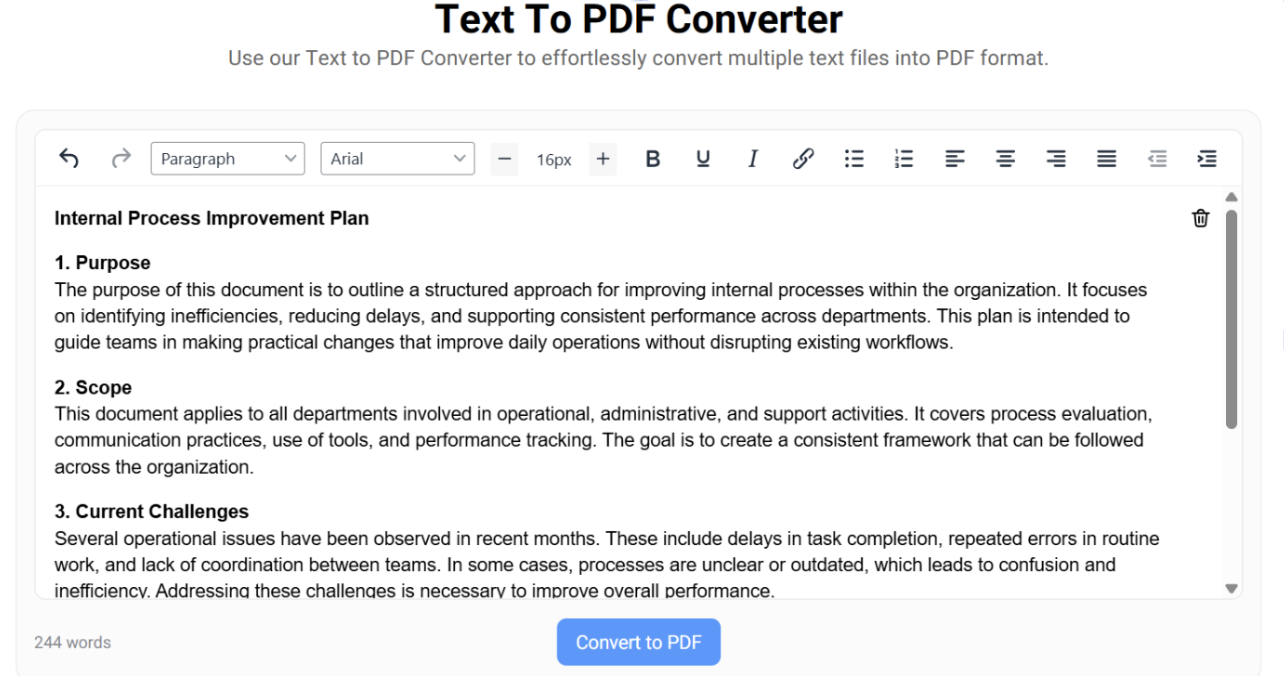
Step 3 - Adjust Basic Formatting
Upon entering your text into the tool, give it a quick look. Check if the formatting is intact. This tool offers basic formatting options, but they are enough to adjust the font, spacing, headings, bullet points, or highlighting. This feature may vary depending on the tool you selected.
You can check the text alignment and the extra spaces. You need to make sure the text is ready for conversion.
Step 4 - Convert the Text into PDF
Now that you’ve checked the text, all you need to do is press the “Convert to PDF” button, as shown in the screenshot below.
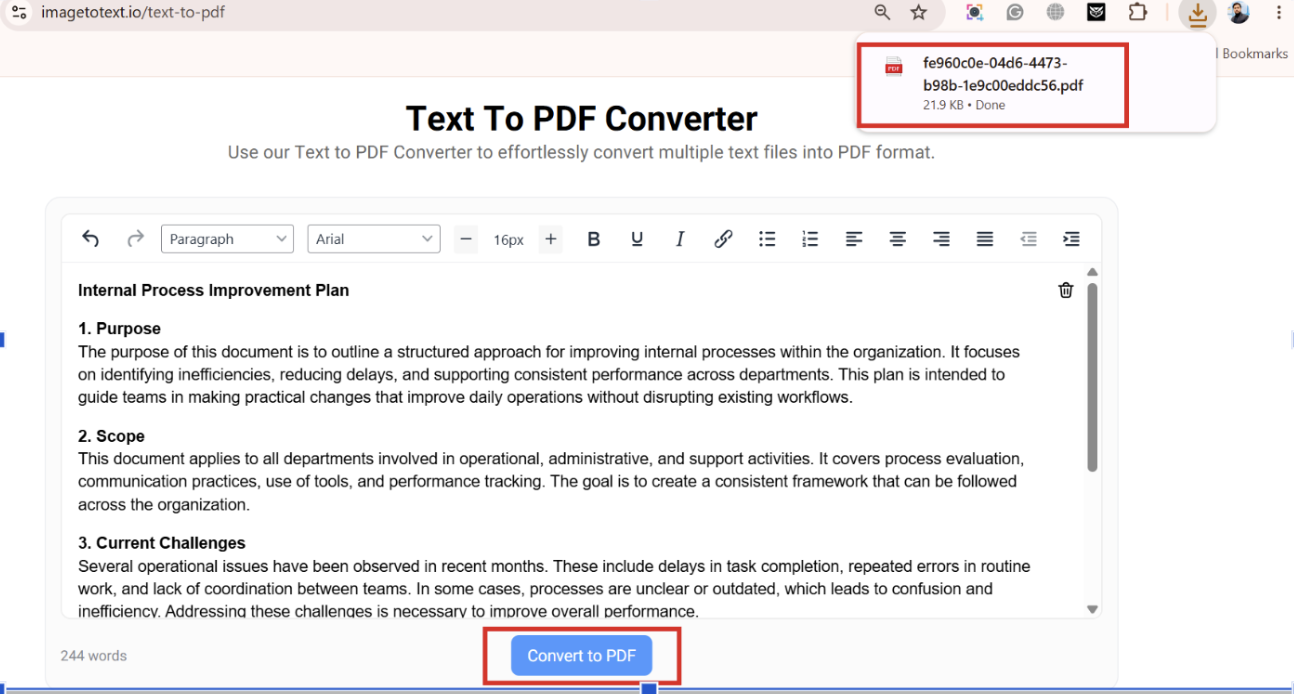
Once you press the convert button, the tool will take a few seconds to convert the text to PDF. And the converted PDF file will start downloading automatically. The converted PDF will retain the formatting and present the content in a consistent layout. You can see the output PDF file produced by the tool in the screenshot below.
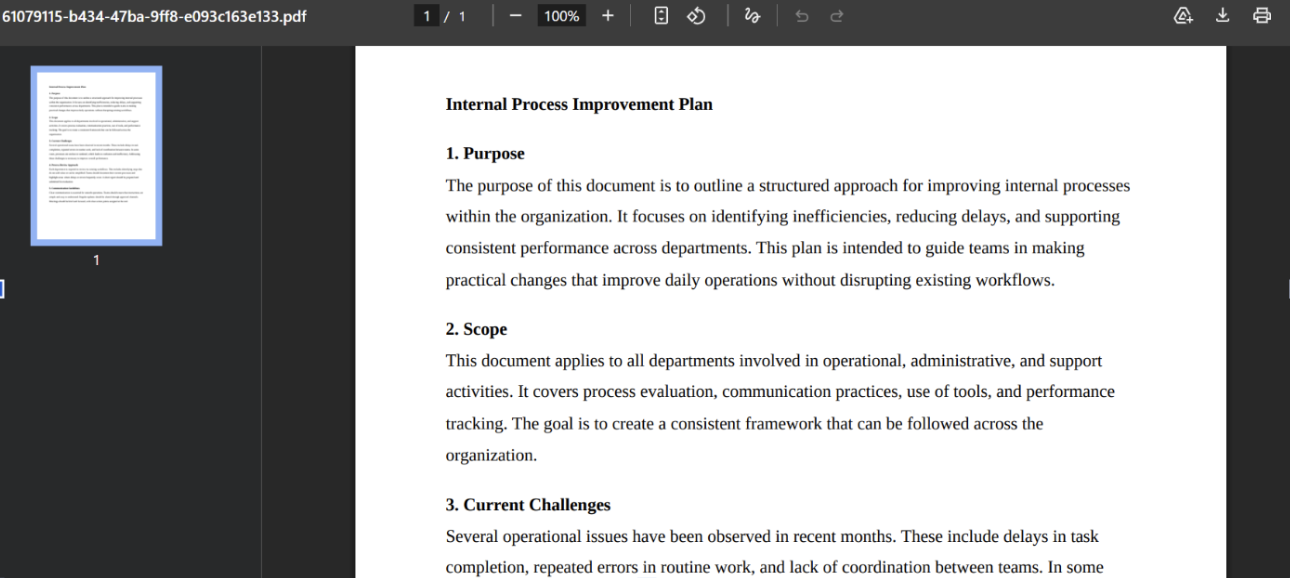
This is how you can convert text into a PDF to manage your documents effectively. It is quick and usually takes just a few seconds, depending on the entered text. When you’ve downloaded your PDF file, give it a quick look again. If you find anything off, you can fix it from the text file and start the conversion again, as it is quick and easy.
Now that you have your text in a proper PDF file, you can easily share it without worrying about the format shifts. You can also combine bulk information related to a specific topic in one PDF. This helps you preserve information in a more reliable format (PDF) and improves document management.
Final Thoughts
Some people store notes and important information in text files. However, managing them becomes messy, and they are not ideal for sharing. A better approach is to convert text or text files into a PDF.
To do this, you have to select an online text-to-PDF converter. Enter your text into the tool. Adjust the formatting. Give it a quick look. If something needs correction or format adjustment, fix it.
Once you are sure about the text, press the convert button. The tool will take a few seconds and convert the text into a PDF. The file will start downloading automatically, depending on the tool you selected. Or you can download it manually if the tool offers this feature. This is a quick process. It helps make your document management and sharing better.


