


Best Free Client Portal Options for Creating Your Own Portal
Trying to create your own client portal for free usually means one of two things.
You either need a simple place to share files with clients, or you need a more professional way to manage client work without relying on email, Google Drive folders, spreadsheets, and scattered messages.
Those are very different needs.
A free shared folder may work for one client and a few documents. But if you need secure client login, separate client workspaces, branded access, permissions, document uploads, and communication in one place, you need something closer to a real client portal.
This guide compares the best free client portal options, what each one is good for, and when it makes sense to move from a DIY setup to a professional platform like Clinked.
Quick answer: what is the best free client portal option?
The best free client portal option depends on what you need.
For basic file sharing, Google Drive is the simplest free option. For a simple client dashboard, Notion can work. For custom portal builds, Softr or WordPress plugins may be useful. For forms and document collection, Jotform is a practical choice.
But if you want a secure, branded client portal with separate client workspaces, permissions, file sharing, communication, and a professional client experience, Clinked is the best option to test through a 14-day free trial.
What is a free client portal?
A free client portal is an online space where clients can access files, updates, messages, forms, or project information without everything being sent through email.
The word “free” can mean several things:
- a free forever plan with limits
- a free template
- a free DIY setup using tools you already use
- a free trial of professional client portal software
- an open-source or plugin-based portal
That is why comparing free client portal options can be confusing.
A Google Drive folder, a Notion page, a WordPress plugin, and a branded client portal are not the same thing. They may all help you share information with clients, but they offer very different levels of security, structure, branding, and control.
How to choose the right option
Here is the simplest way to decide:
If you are only sharing files, start simple.
If clients are sending sensitive documents, asking for updates, getting lost in email threads, or needing separate private spaces, choose a proper client portal.
1. Clinked: best for a secure branded client portal
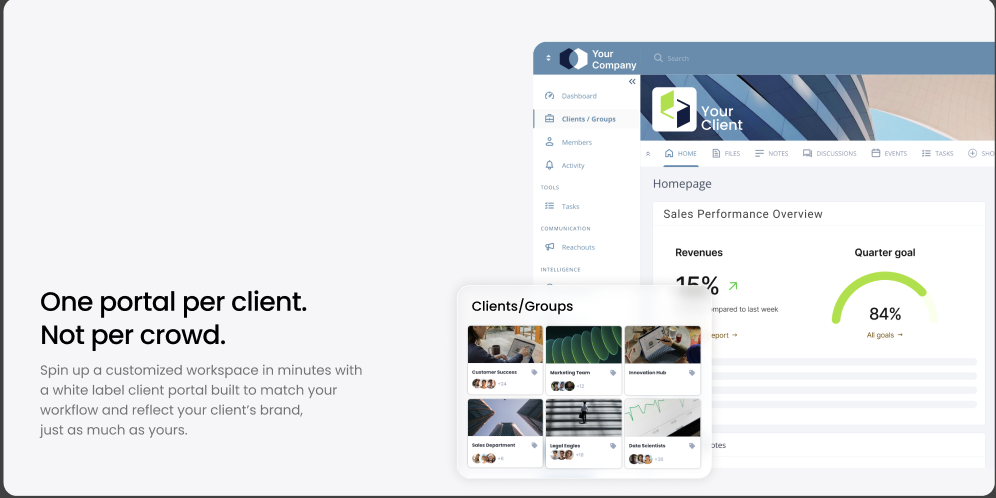
Clinked is the best option if you want to create a proper client portal instead of piecing one together with folders, spreadsheets, forms, and project boards.
It is built for businesses that need secure client workspaces, branded portals, file sharing, communication, permissions, and document collaboration in one place.
With Clinked, you can create your own client portal during a 14-day free trial. That gives you time to set up your portal, add your branding, invite your team, test the client experience, and decide whether it fits your workflow before moving to a paid package.
Clinked is especially useful if your business works with clients regularly and needs a professional place to manage that relationship.
It works well for:
- agencies
- consultants
- startups
- accounting firms
- legal firms
- financial service providers
- healthcare and HR teams
- IT service providers
- professional service businesses
The main difference between Clinked and DIY tools is that Clinked is built specifically for client portals. You are not trying to turn a folder, spreadsheet, form tool, or project board into something it was not designed to be.
Why choose Clinked?
Choose Clinked when you need:
- secure client login
- branded client workspaces
- file sharing
- client uploads
- client communication
- access permissions
- separate groups or workspaces
- document collaboration
- a professional client experience
This matters if clients are sending confidential files, reviewing important documents, asking for updates, or working with your team over a longer period of time.
A basic free tool may be enough for quick file sharing. But if you want clients to log into a branded space that feels like part of your business, Clinked is the better option.
Main limitation
Clinked is not free forever.
It offers a 14-day free trial, then you continue on a paid package. That makes it best for businesses that want to test a professional client portal before committing, rather than businesses looking for a permanently free DIY workaround.
2. Google Drive: best for basic file sharing

Google Drive is one of the easiest ways to create a simple client portal-style setup.
You can create a folder for each client, upload files, share access, and use Google Docs or Sheets for basic collaboration.
For many small businesses, this is the first step away from email attachments.
Where Google Drive works well
Google Drive works well when you need to:
- share files
- store documents
- collaborate on documents
- organize basic client folders
- avoid sending large attachments by email
If your client relationship is simple, Google Drive may be enough.
For example, a freelancer could create one folder for a client, add a contract, upload deliverables, and share a few documents.
Where Google Drive falls short
Google Drive is not a full client portal.
It does not give you a branded client dashboard. Permissions can become confusing. Communication still happens elsewhere. Clients may struggle to know which folder or document matters most.
It also becomes harder to manage when you have many clients, many folders, or multiple team members.
Google Drive is good for storing files. It is less useful for managing the full client experience.
3. Notion: best for simple client dashboards
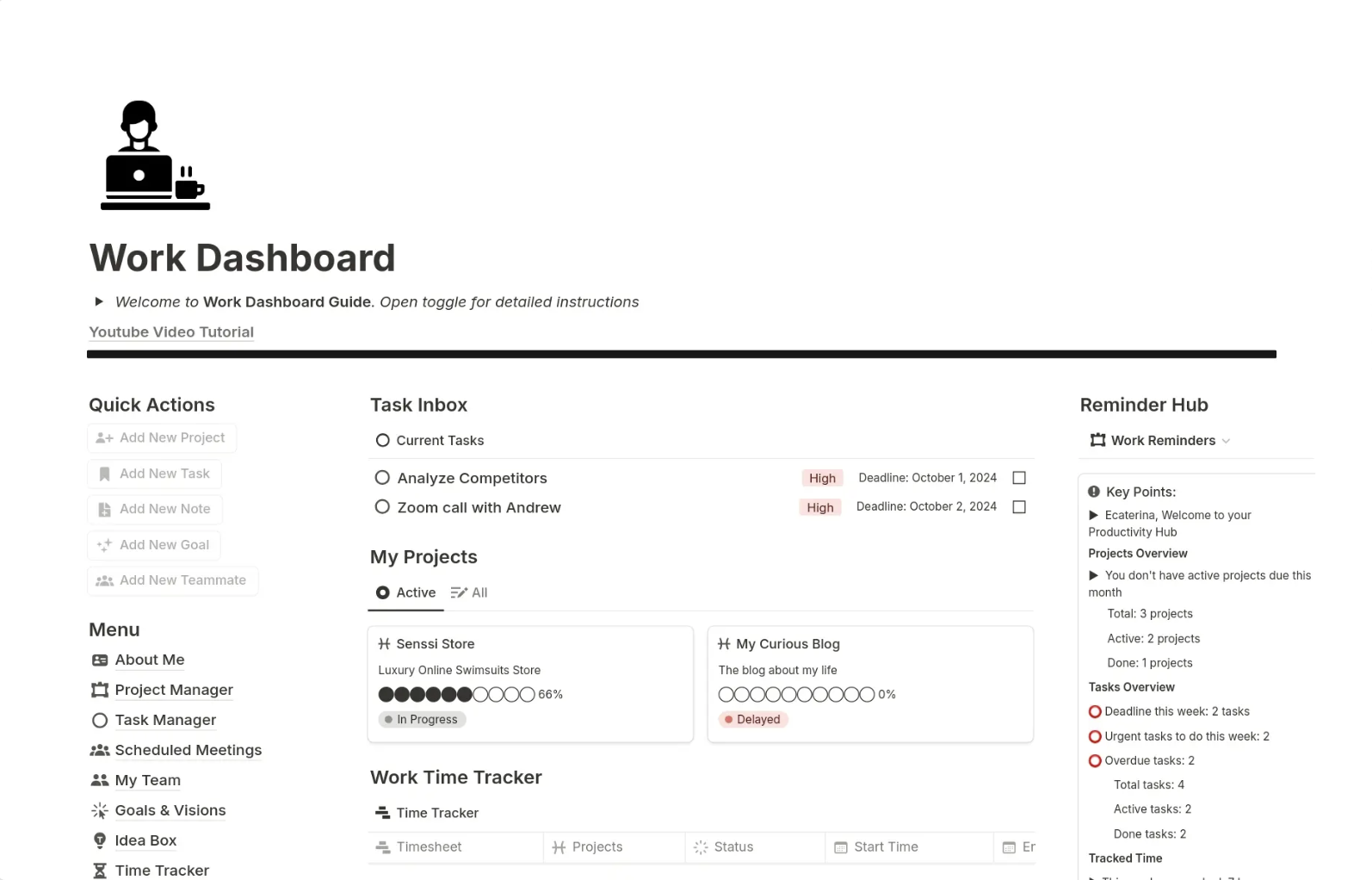
Notion can be used to create a simple client dashboard.
You can build a page for each client, add project notes, include links, create checklists, and share the page externally.
It is popular because it looks clean and gives you control over the layout.
Where Notion works well
Notion is useful if you want:
- welcome notes
- project timelines
- important links
- meeting notes
- checklists
- shared resources
- simple documentation
- client-facing dashboards
It can work well for consultants, freelancers, coaches, and small teams that want something simple and visual.
Where Notion falls short
Notion was not built mainly as client portal software.
It can work as a simple dashboard, but it may not give you the level of security, file control, branding, permissions, and client management needed for serious client work.
It can also become messy if every client page is built differently.
4. Softr: best for no-code client portal building

Softr is a no-code platform that lets you build web apps and portals without traditional development.
It can be useful if you want more customization than a shared folder or Notion page.
Where Softr works well
Softr can help you build a portal with:
- client login
- custom pages
- data from Airtable or Google Sheets
- forms
- lists
- basic user access
- no-code workflows
It gives you more control over the portal experience than a simple document tool.
Where Softr falls short
The main trade-off is setup time.
Because Softr is a builder, you need to design the structure, connect data sources, configure access, and maintain the portal yourself.
That can be powerful, but it may be more work than expected.
If your goal is to quickly launch a secure client portal, dedicated client portal software may be faster.
5. Airtable: best for database-style client portals
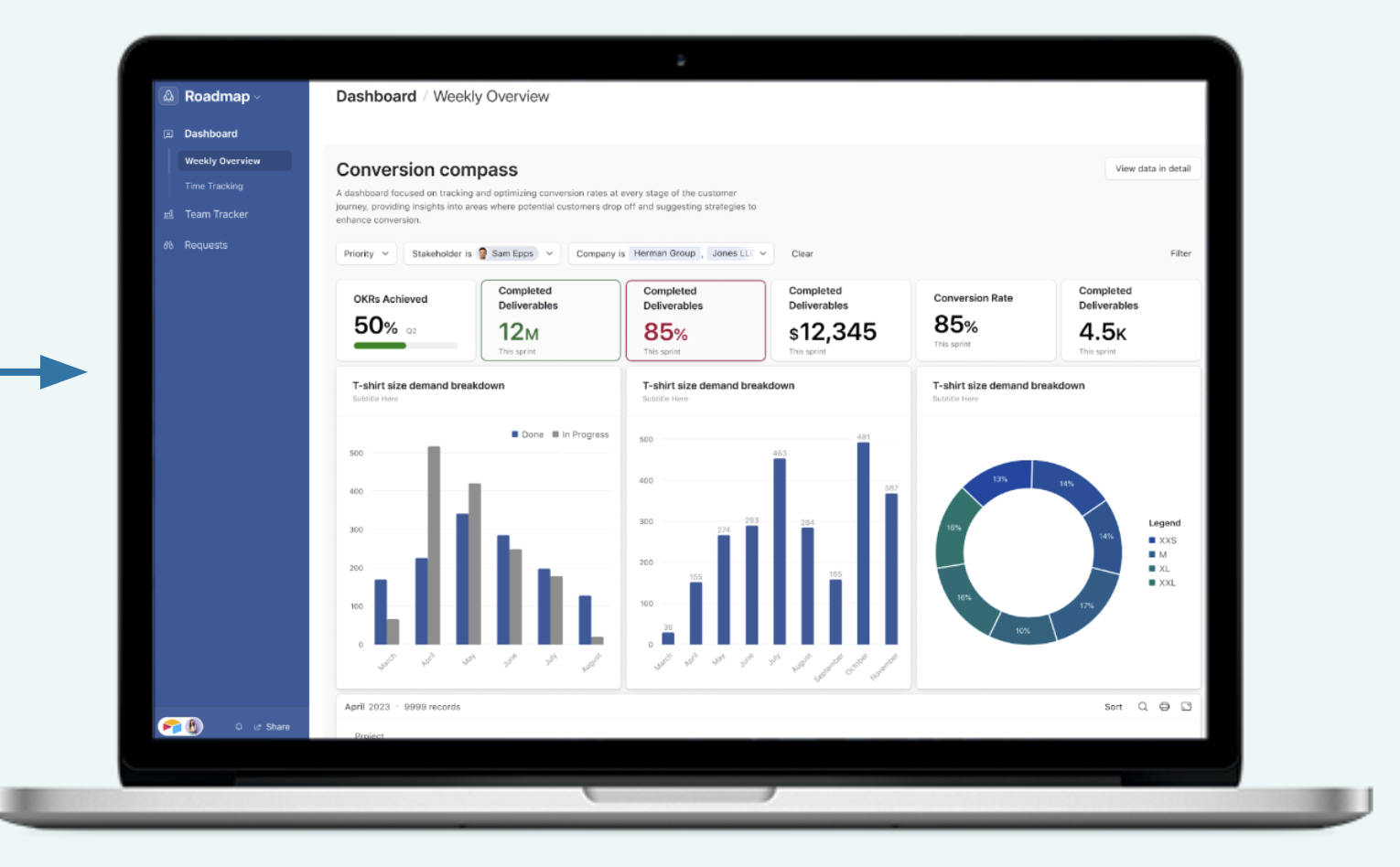
Airtable is useful when your client portal needs structured data.
It can help manage client information, project trackers, requests, approvals, content calendars, and status views.
Where Airtable works well
Airtable is useful for:
- client trackers
- project status boards
- request databases
- approval workflows
- content calendars
- CRM-style records
- structured project information
Where Airtable falls short
Airtable is not a complete client portal by itself.
It may help you organize client data, but you may still need other tools for secure login, file sharing, communication, branding, and document uploads.
It can also feel too database-like for clients who only want a simple place to access files and updates.
6. WordPress client portal plugins: best for website-based portals
If your website runs on WordPress, client portal plugins can help you create private areas for clients.
This can be useful if you want the portal to live directly on your website.
Where WordPress plugins work well
WordPress plugins can be useful if you want:
- a portal connected to your website
- private client pages
- file downloads
- client login
- basic document access
- simple member areas
Where WordPress plugins fall short
WordPress portals usually need more maintenance.
You may need to manage hosting, plugin updates, backups, security, permission settings, and technical issues.
For businesses that do not want technical upkeep, a hosted client portal platform is usually easier.
7. Trello or ClickUp: best for project-style client portals
Trello and ClickUp are project management tools, but they can be adapted into client-facing spaces.
You can create a board, list, or project for each client and invite them to view tasks, updates, files, and progress.
Where Trello and ClickUp work well
These tools are useful for:
- project tracking
- task updates
- timelines
- approvals
- comments
- file attachments
- client visibility
- to-do lists
Where Trello and ClickUp fall short
Project management tools can feel internal.
Clients may not want to navigate tasks, statuses, lists, and project boards just to find a document or read an update.
They are good for managing work. They are not always ideal as the main client portal.
8. Jotform: best for forms and document collection
Jotform is a strong option if your main need is collecting information from clients.
You can create forms for onboarding, document uploads, requests, feedback, approvals, and client intake.
Where Jotform works well
Jotform is useful for:
- client intake forms
- document upload forms
- feedback forms
- approval forms
- booking requests
- service request forms
- data collection
It is simple for clients because they only need to complete a form.
Where Jotform falls short
Jotform is not a full client portal by itself.
It is great for collecting information, but it does not replace a proper client workspace where clients can log in, access files, review updates, and communicate over time.
For many businesses, Jotform works best alongside a client portal rather than instead of one.
Free client portal software vs DIY tools
DIY tools are useful when you are starting out.
They are usually quick, familiar, and low cost.
But DIY setups often become messy as client work grows.
You may start with one shared folder. Then you add a spreadsheet. Then a Notion page. Then email threads. Then a form tool. Then a project board.
Before long, your “free portal” becomes a patchwork of disconnected tools.
That can create problems such as:
- clients not knowing where to find things
- files being stored in too many places
- permissions becoming confusing
- team members using different processes
- communication getting lost
- no clear client experience
- more admin work over time
A dedicated client portal brings these pieces together.
Instead of building a system around multiple tools, you give clients one central place to work with your business.
When is a free option enough?
A free client portal option may be enough if your needs are very simple.
A DIY setup may work if:
- you have only one or two clients
- you only need to share files
- you do not need branding
- you do not handle sensitive information
- you do not need structured permissions
- you do not need ongoing client communication
- you are just testing a new service
In that case, Google Drive, Notion, or a basic template can be a practical starting point.
When should you move to a professional client portal?
Move to professional client portal software when your client process starts to feel scattered.
That usually happens when:
- you send and receive important documents
- clients need regular updates
- you want a branded experience
- your team is wasting time chasing files
- you need secure access control
- you handle confidential information
- you want a repeatable onboarding process
- you want clients to see your business as more professional
At this point, the portal is not just a convenience. It becomes part of your service delivery.
Best overall option for growing businesses
If you only need a free place to share files, Google Drive is the simplest option.
If you want a basic dashboard, Notion can work well.
If you want to build a custom no-code portal, Softr is worth considering.
But if you want a secure, branded, client-ready portal without building everything yourself, Clinked is the better fit.
Clinked gives you a professional client portal experience during a 14-day free trial, so you can test the setup before choosing a paid package.
That makes it a strong option for businesses that want to move beyond email, shared folders, and DIY systems.
Built for growing businesses, not just big enterprises
A professional client experience should not be something only large enterprises can afford.
Small businesses, startups, consultants, agencies, and growing teams also need to look organized. They also need to protect client documents. They also need a simple way to give clients one secure place for files, updates, and communication.
That is why Clinked introduced the Start Up package.
It gives smaller teams a more accessible way to move away from messy email threads, shared folders, and scattered tools without jumping straight into an enterprise-level setup.
With the Start Up package, teams can create a secure, branded client portal from $8.80 per user/month.
View Clinked pricing and the Start Up package
Final answer: which free client portal option should you choose?


