

Sharing files securely with external clients and partners is one of the core things organisations expect from SharePoint. And for the most part, SharePoint can do it — but the gap between "SharePoint can share files" and "SharePoint shares files securely by default" is wider than most people realise when they first set it up. The configuration required to get it right spans multiple admin levels, involves several overlapping settings, and demands ongoing attention to stay clean.
This guide walks through every layer of SharePoint's secure file sharing model: how it works, how to configure it properly, and where its limits become apparent. If you are managing client-facing file sharing and wondering whether SharePoint is the right tool for the job, Clinked's file sharing features offer a purpose-built alternative worth understanding before you commit to the setup work SharePoint requires.
How Secure is SharePoint for File Sharing
SharePoint's underlying security infrastructure is solid. All data stored on Microsoft servers is encrypted at rest using AES-256 encryption, and files in transit are protected through TLS. Microsoft holds a wide range of compliance certifications relevant to enterprise environments, including ISO 27001, SOC 1, SOC 2, and HIPAA readiness. For most organisations, that baseline is reassuring.
The more nuanced reality is that SharePoint's security depends heavily on configuration. The platform ships with external sharing enabled in many tenants, default link types that are often broader than necessary, and no automatic expiration on shared links. Security is available, but it does not come pre-applied. Administrators who do not actively configure these settings are likely running a less secure environment than they realise.
The following bullet points summarise SharePoint's core security capabilities:
- Encryption: AES-256 encryption at rest, TLS in transit for all file transfers
- Compliance: ISO 27001, SOC 2, HIPAA-ready, and GDPR-aligned under Microsoft's shared responsibility model
- Access controls: Permission-based sharing across four tiers, from anonymous to organisation-only access
For organisations that want enterprise-grade security without the configuration burden, Clinked's data protection and compliance features are built around ISO 27001 certification and SOC 2 compliance as a baseline, not an add-on. Every workspace comes with AES-256 encryption and a full audit trail, with no additional configuration needed to reach a secure state.
SharePoint External Sharing Options Explained
SharePoint gives administrators four distinct external sharing levels, controlled at the tenant level and optionally restricted further at the site level. Understanding what each one actually allows is essential before enabling any of them.
Anyone Links and Anonymous Sharing
Anyone links allow access to a file or folder without any authentication. The recipient does not need a Microsoft account, a one-time passcode, or any form of login. They click the link and they are in. This is convenient for low-stakes content but carries real risk for anything sensitive, as there is no way to verify who actually opened the file, and the link can be forwarded to anyone indefinitely.
Authenticated External User Sharing
This is the recommended approach for most external sharing scenarios. External users must verify their identity, either through a one-time passcode sent to their email or by signing in with a Microsoft account. This creates an audit trail: SharePoint can record who accessed what and when. It is meaningfully more secure than anonymous sharing, though it does introduce friction for recipients who are not familiar with Microsoft's authentication flow.
Existing External Users Only
This option restricts sharing to people who are already in your organisation's Azure Active Directory as guest users. Before someone can be shared with, they must already have been invited and registered. It is a tighter control model, but it requires upfront administrative work to onboard each external contact before any sharing can take place.
Internal Organisation Sharing Only
The most restrictive setting. Files can only be shared within your own organisation, with no external access possible. This is appropriate for sites containing sensitive internal documents, HR records, financial data, or board-level communications that should never leave the organisation.
Sharing TypeSecurity LevelUser ExperienceBest Use CaseAnyone LinksLowFrictionlessPublic assets, low-risk contentAuthenticated ExternalMedium-HighModerate frictionClient and partner collaborationExisting External UsersHighLow friction once onboardedRegular external collaboratorsInternal OnlyHighestNo external accessSensitive internal documents
How to Configure SharePoint Tenant-Wide Sharing Settings
Tenant settings define the maximum sharing permissions across your entire organisation. No individual site can be configured to allow more sharing than the tenant permits, which makes this the most important layer to get right.
1. Access the SharePoint Admin Center
Sign in to the Microsoft 365 admin portal at admin.microsoft.com, navigate to Admin Centers in the left panel, and select SharePoint. From there, open the Policies section and click Sharing.
2. Set Organisation-Wide Sharing Permissions
You will see a slider with the four sharing levels described above. Set this to the broadest level your organisation genuinely needs. If in doubt, start more restrictive and loosen it as requirements become clear, rather than opening it up and narrowing it down later.
3. Configure Default Link Types
Below the sharing level slider, you can set what type of link is created by default when a user clicks Share. Options typically include Anyone with the link, People in your organisation, and Specific people. Setting the default to Specific people is the most secure starting point, as it forces users to actively choose a broader option rather than defaulting to it.
4. Enable or Disable Guest Access
The guest access toggle controls whether external users can be invited as guests to SharePoint sites, not just to individual files. Enabling it allows richer collaboration but requires more governance. If your organisation does not have a clear process for managing guest accounts and reviewing access over time, keeping this off until that process exists is a reasonable position.
How to Change Sharing Settings at the Site Collection Level
Individual site collections can have sharing settings that are equal to or more restrictive than the tenant level, but never more permissive. A tenant configured for authenticated external sharing can have individual sites locked down to internal-only access, but not the other way around.
1. Navigate to Site Settings
In the SharePoint Admin Center, go to Sites and then Active Sites. Select the site you want to configure, open its settings panel, and navigate to the Policies tab to find the External Sharing section.
2. Adjust Site-Specific Permissions
Use the site-level sharing slider to set the appropriate level for that particular site. A client project site might allow authenticated external sharing, while a finance site sits at internal-only regardless of tenant defaults.
3. Override Tenant Defaults
"Override" is slightly misleading here — you can only make a site more restrictive than the tenant setting. If your tenant allows Anyone links, you can restrict a specific site to authenticated external users only. You cannot grant a site permissions that exceed what the tenant allows.
How to Share Files on SharePoint with External Users
Once your settings are configured at the tenant and site level, this is the day-to-day sharing flow for end users.
1. Select the File or Folder
Navigate to the document library containing the content you want to share. Hover over the item and click the circle icon that appears to select it, or open the file's context menu using the three-dot ellipsis.
2. Choose Specific People or Copy Link
Clicking Share opens the sharing panel. You have two main options: entering specific email addresses to share directly with named individuals, or generating a link. For secure file sharing with clients, sharing with specific people is strongly preferable over generating a general link, as it restricts access to the intended recipients and creates a clearer audit record.
3. Set Permissions and Access Levels
Before sending, select the access level. View allows the recipient to open and read the file. Edit allows them to modify it. Can't download is available for sensitive documents where you want visibility without local copies. Select the most restrictive level that meets the legitimate need.
4. Send the Secure Link
Click Send or Copy Link depending on your preferred method. External recipients receive an email with the link and, if authenticated sharing is enabled, will be prompted to verify their identity before accessing the content.
How to Set SharePoint Link Expiration and Access Controls
Link expiration is one of the most effective and underused security controls in SharePoint. Without expiration, shared links remain active indefinitely, even after a project ends, a client relationship changes, or a contractor leaves. Setting expiration dates is a simple way to reduce the risk of long-forgotten access persisting in the background.
Administrators can set default expiration periods in the SharePoint Admin Center under Sharing settings, applying organisation-wide defaults for external links. Individual users can also set or modify expiration dates when creating a link from the sharing panel.
Key controls to implement:
- Expiration dates: Set a default expiration of 30 or 60 days for external links, requiring conscious renewal if access is still needed
- Access reviews: Periodically review the Sharing section of individual files to verify who still has active access
- Revoking access: Open the file's Manage Access panel, identify the relevant user or link, and remove or disable it directly. Changes take effect immediately
How to Restrict File Downloads in SharePoint
Preventing file downloads is valuable when you need recipients to see content without taking local copies, which is particularly relevant for legal documents, contracts, proposals, or any file where version control and distribution tracking matter.
Block Downloads During Link Creation
When creating a sharing link, select the View option and then look for the Block download toggle in the sharing panel. Enabling this allows recipients to open and view the file in the browser but removes the download option from their interface.
Prevent Downloads at the Site Level
For broader enforcement, administrators can restrict downloads across an entire site collection through the SharePoint Admin Center site settings, or by using PowerShell with the Set-SPOSite command and the DisableAppViews or OverrideSharingCapability parameters. This applies the restriction to all content on the site rather than requiring it to be set file by file.
Best Practices for Secure SharePoint File Sharing
1. Limit Sharing to Site Owners
By default, members of a SharePoint site can share content externally. Restricting this so that only site owners can initiate external sharing significantly reduces the risk of accidental exposure. This setting lives under Site Permissions in the site settings menu.
2. Use Authenticated Over Anonymous Links
Anonymous links have their place, but not in client-facing or sensitive business contexts. Requiring authentication means every access event is tied to a verified identity, which matters both for security and for any subsequent audit or compliance review. This maps directly to responsible client management practice.
3. Set Expiration Dates on External Links
Make link expiration a policy, not an option. A 30-day default covers most collaboration windows while keeping forgotten access to a minimum. Teams sharing content as part of client onboarding or time-limited projects benefit most from this discipline.
4. Monitor and Audit File Access
SharePoint Online provides audit logging through Microsoft Purview. Administrators can review who accessed which files, when links were created, and when permissions changed. Setting up regular access reports — particularly for sites used in document management with external parties — is an important ongoing habit.
5. Train Users on Sharing Protocols
The most carefully configured tenant can be undone by a user who clicks "Anyone with the link" out of habit. Training sessions, written protocols, and occasional reminders about the organisation's sharing policy are worth the time investment. The human layer of security is at least as important as the technical one.
What the Microsoft SharePoint Confidential Information Prompt Means
If you use SharePoint on a Mac, you have likely seen a pop-up that reads "Microsoft SharePoint wants to use your confidential information stored in Microsoft Identity." This prompt causes genuine alarm the first time it appears, largely because of how it is worded.
It is not a security threat. The alert is macOS's Keychain Access system asking for permission to allow SharePoint to read the authentication credentials it has stored on your device. SharePoint needs those credentials to verify your identity for Microsoft 365 without requiring you to sign in again. Clicking "Allow" grants that permission for the current session, while "Always Allow" grants it permanently.
The prompt reappears most commonly after Office updates, after the app has been moved from its default Applications folder location, or when an authentication token has expired. If it is appearing persistently, reinstalling the Microsoft Office suite or clearing the corrupted Keychain entries associated with Microsoft Identity typically resolves it.
SharePoint File Sharing Limitations and Alternatives
Complex Configuration Requirements
Getting SharePoint's sharing settings genuinely right takes time, expertise, and ongoing management. Tenant settings, site-level overrides, link defaults, expiration policies, guest access governance, and audit log reviews are all separate tasks that require different admin permissions and tools. As noted in community discussions on the Microsoft Tech Community, external users regularly encounter access errors even in well-maintained environments, often caused by tenant policy conflicts or authentication flow issues.
Limited White-Label Branding Options
When a client receives a SharePoint sharing link, they land on a Microsoft-branded interface. There is no option to present your own logo, colours, or domain on the sharing experience. For professional services firms where the client experience is part of the value, this is a real limitation. Clinked's customisation features allow fully branded portals with custom domains and branded email notifications, so clients interact with your brand from invitation through to file access.
External User Experience Challenges
External recipients frequently struggle with SharePoint's authentication requirements. Clients who do not have a Microsoft account face a one-time passcode flow that is unfamiliar. Clients who do have a Microsoft account sometimes encounter tenant conflicts that produce access errors with no clear resolution path. As one user described in the Microsoft Tech Community: "external users not being able to access our files... sometimes it's their tenant conflicting with ours." These are not edge cases — they come up regularly in organisations that rely on SharePoint for external collaboration.
When to Consider a Dedicated Client Portal
When the configuration overhead and external user friction of SharePoint start costing more time than the platform saves, purpose-built client portal solutions are worth serious consideration. Clinked is ISO 27001 certified and SOC 2 compliant, supports file sharing with clients without Microsoft account requirements, and gives every external collaborator a clean, branded experience from day one. For industries like legal, financial services, accounting, and insurance, where client experience and data governance both matter, that combination is genuinely hard to replicate in SharePoint without significant investment.
Choosing the Right Secure File Sharing Platform for Your Business
SharePoint is a capable platform for internal collaboration and, with the right configuration, for secure external file sharing too. But capability and suitability are different things. If your primary use case is sharing documents and managing communication with external clients, the administrative overhead of configuring and maintaining SharePoint's sharing settings at scale is a real ongoing cost. For a full picture of what that cost looks like in practice, our SharePoint cost guide breaks down licensing, setup, and maintenance in concrete terms.
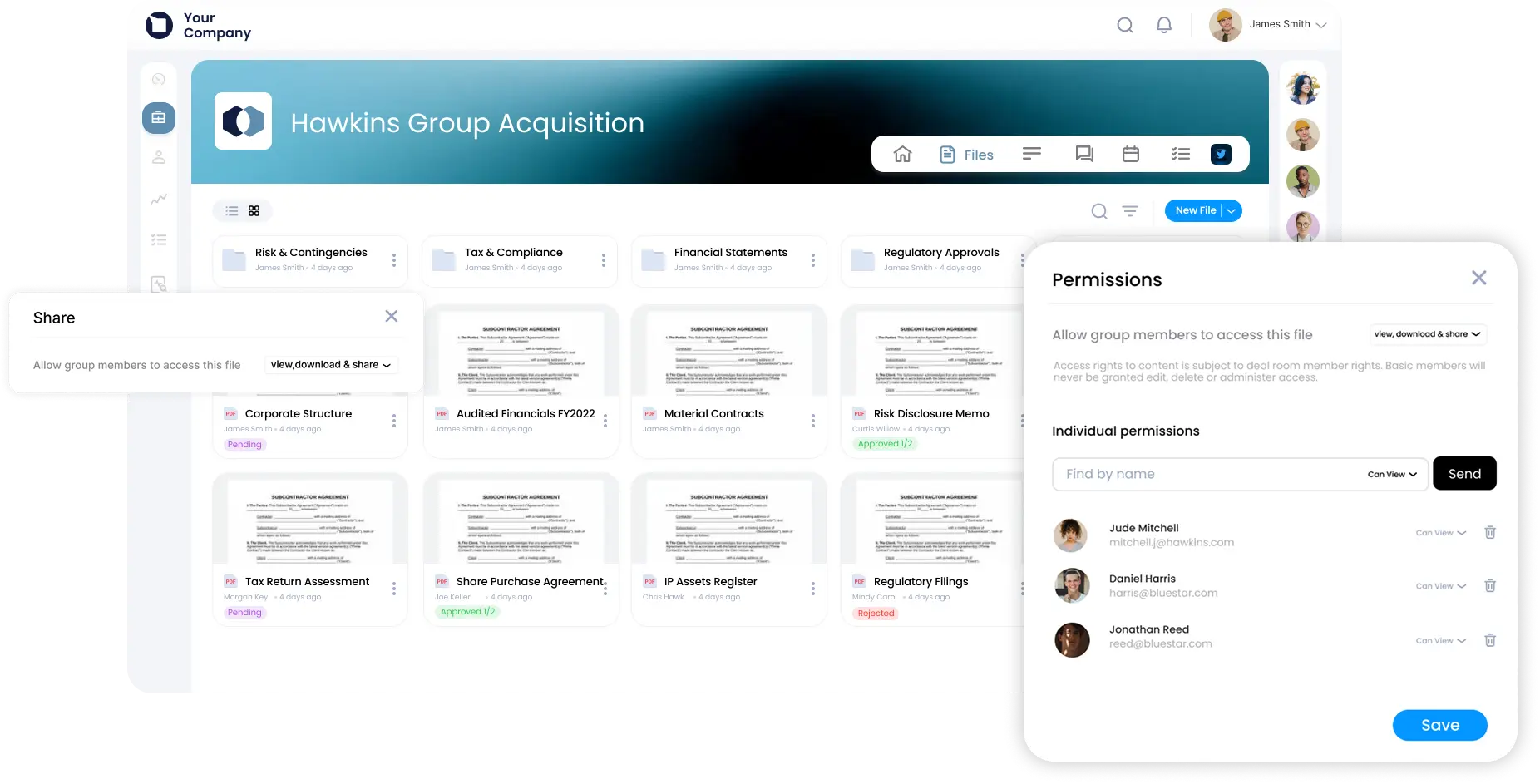
Organisations that want security without the configuration complexity, a branded experience for their clients, and a straightforward external access model will find that Clinked's client portal delivers all of that with considerably less setup time. The access and permissions model is built around client-facing collaboration from the ground up, not retrofitted onto an enterprise intranet platform.
Book a demo with Clinked to see how secure file sharing works in a platform designed specifically for it.
FAQs about SharePoint Secure File Sharing
Is SharePoint being discontinued by Microsoft?
No, SharePoint is not being discontinued. Microsoft continues to invest in SharePoint as a core part of Microsoft 365, with ongoing development and integration with Microsoft Teams and Copilot. Some older on-premises SharePoint Server versions do reach end-of-support on specific dates, but SharePoint Online remains active with no announced retirement.
Will SharePoint be retired in 2026?
SharePoint Online is not retiring in 2026. Certain legacy SharePoint Server versions have specific end-of-support dates, but the cloud version included in Microsoft 365 subscriptions continues to receive updates and investment.
How do I share a secure SharePoint folder with external users?
Navigate to the folder in your document library, click the Share icon, choose Specific People, enter the recipient's email address, set the permission level to View or Edit as appropriate, and send the link. The recipient will receive an email and be prompted to verify their identity before accessing the folder.
Can external users edit files shared through SharePoint?
Yes, if you grant Edit permissions when sharing. You can also restrict external users to view-only access or enable the block download setting for documents that should be seen but not saved locally.
How do I revoke access to a shared SharePoint file?
Open the file, click the Share icon, and select Manage Access. From there you can remove specific users or disable shared links entirely. Access is revoked immediately once removed.
Does SharePoint encrypt files during transfer and storage?
Yes. Files stored on SharePoint are encrypted at rest using AES-256, and all data transmitted between users and the platform is protected with TLS encryption in transit.
Photo by Ilya Pavlov on Unsplash






.webp)

.webp)