

SharePoint Online is used by more than 200 million users across Microsoft 365 tenants, and it earns that adoption for good reason. For internal document management and team collaboration, it is a genuinely solid platform. The problems start when you need to bring someone from outside your organization into the picture.
If you have ever spent an afternoon troubleshooting why a client cannot open a file you shared with them last week, you already know what this article is about. SharePoint guest access sits across multiple admin centers, layers of policies, and authentication systems that interact in ways that are not always predictable. Getting it right takes deliberate configuration, and keeping it right takes ongoing attention.
This guide covers everything: what guest access is, how it differs from external sharing, how to configure it at each level, what guests can actually do once they are in, and how to audit and restrict access when needed. Where SharePoint shows its limits for client-facing collaboration, we will be straight about that too, and what something like Clinked's client portal does differently.
What is SharePoint guest access?
SharePoint guest access is the ability to grant people outside your organization access to SharePoint sites, files, and folders. A guest is any user without a license in your Microsoft 365 tenant: clients, contractors, auditors, external consultants, anyone who needs to collaborate with you but sits outside your directory.
When you invite a guest, SharePoint creates a guest account in Microsoft Entra ID (formerly Azure Active Directory) tied to the email address you used. That account becomes how the guest gets in. Simple enough in principle. The friction comes from the layers of settings governing whether that access actually works and continues to work.
[fs-toc-omit]Guest access vs external sharing in SharePoint
These two terms get used interchangeably all the time, and it causes real problems. They describe different things, and mixing them up is one of the most common reasons teams end up with broken sharing configurations.
[fs-toc-omit]Site and team guest access
This is what most people picture when they say "SharePoint guest access." Guests become members of a SharePoint site or Microsoft Teams team with ongoing access to everything within it. They appear in the site membership, can be assigned permission levels, and keep access until someone removes them.
[fs-toc-omit]File and folder external sharing
This is about generating a shareable link to a specific document or folder, without adding anyone as a site member. Links can expire, require sign-in, or allow anonymous access depending on your sharing policy. It is quicker to set up, but the oversight is thinner. People accessing content through a link are harder to track than guests who are explicitly added as members.
File sharing with clients takes a cleaner approach here. External users land in a dedicated workspace with clear role-based permissions from day one, rather than navigating a link-and-policy system that requires ongoing management.
How to enable SharePoint guest access
Enabling guest access is not a single switch. It requires configuration at three separate levels, and each one can override the level below it. This is the part that trips up even experienced admins.
The three levels are Microsoft Entra ID, which controls whether external collaboration is allowed tenant-wide; Microsoft 365 Groups, which determines whether groups and group-connected sites and Teams can include guests; and the SharePoint Admin Center, which sets the actual sharing policy for SharePoint and OneDrive. If any one of these is misconfigured, guest sharing will not work regardless of what the others say.
[fs-toc-omit]Configure Microsoft Entra external collaboration settings
Start in the Microsoft Entra admin center and navigate to Identity > External Identities > External collaboration settings. This is where you control who in your organization can send guest invitations, ranging from anyone including regular users, all the way down to admins only. You can also set domain allowlists or blocklists here.
For most organizations, allowing group members and admins to invite guests strikes a reasonable balance between flexibility and control.
[fs-toc-omit]Configure Microsoft 365 Groups guest settings
Go to the Microsoft 365 admin center > Settings > Org settings > Microsoft 365 Groups. Two checkboxes matter here: one that lets group owners add external people as guests, and one that lets those guests actually access group content.
Both need to be on if you want guests to reach team-connected SharePoint sites. If the second one is off, guests can be added to a group but will not be able to see anything inside it, which is a surprisingly common source of confusion.
[fs-toc-omit]Configure SharePoint organization-level sharing settings
Open the SharePoint admin center > Policies > Sharing. Here you set the ceiling for sharing across all sites. The four options run from Anyone, which permits fully anonymous links, through New and existing guests, which requires sign-in and tracks guests in Entra, to Existing guests only, and finally Only people in your organization, which turns external sharing off entirely.
The organization-level setting is a ceiling, not a floor. Individual sites can be more restrictive, but never more open than what is set here. For most external collaboration scenarios, "New and existing guests" is the right starting point.
How to configure SharePoint site-level sharing settings
With the organization-level policy in place, you can tune sharing settings site by site. A site can be set to a more restrictive level than the organization allows, but it cannot exceed it. A site marked "Only people in your organization" will block external sharing even if the org setting permits it.
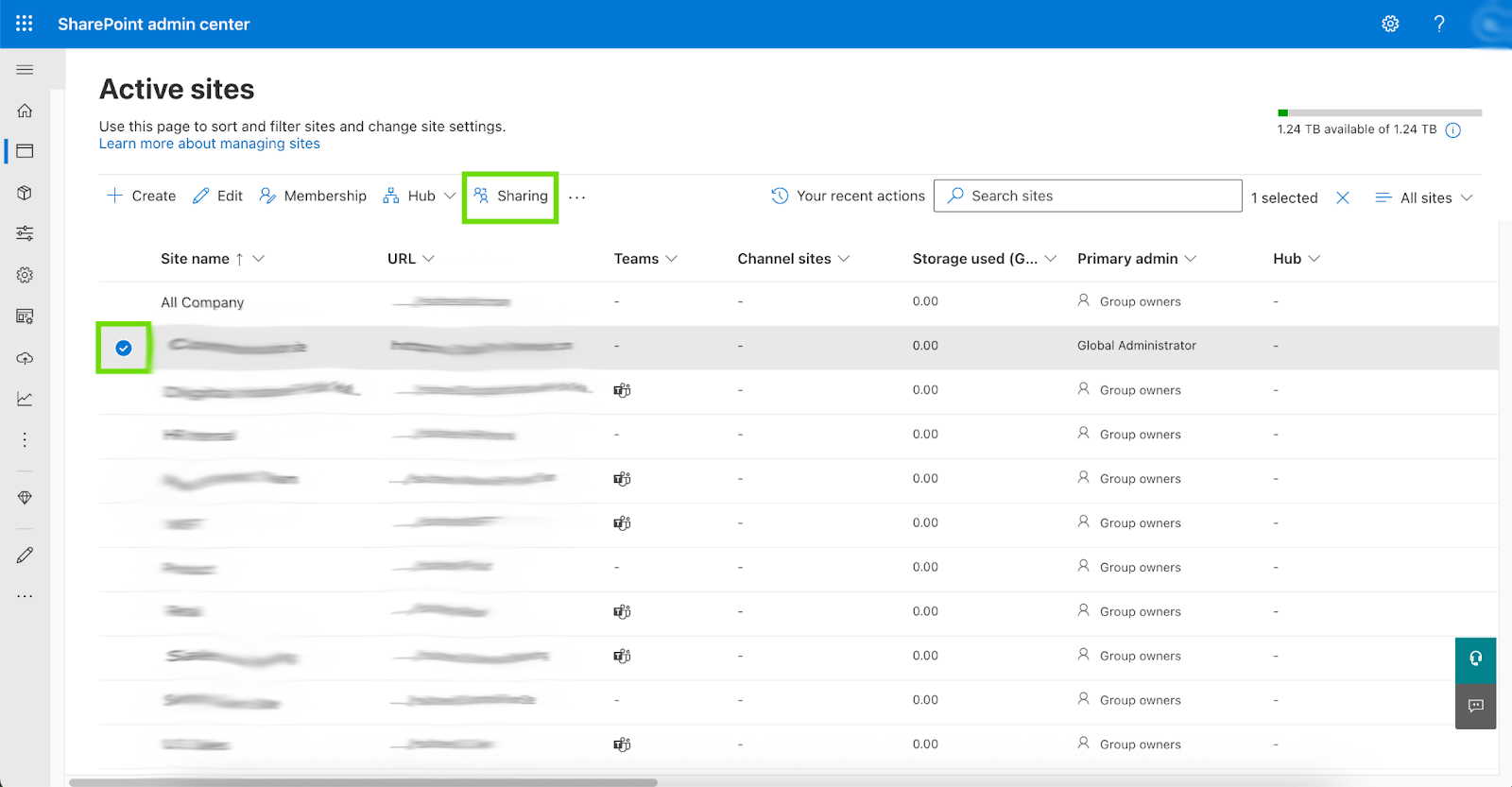
To change a specific site's sharing level, go to the SharePoint admin center > Sites > Active sites, select the site, and open the Settings panel. Under External sharing, pick the level that fits.
This is useful for sites containing sensitive material where you want external sharing locked down regardless of what the organization setting allows.
How to invite external users to SharePoint
Once your settings are in order, there are three ways to actually bring guests in. Each comes with real trade-offs.
[fs-toc-omit]1. Let users invite guests directly
How it works: Users share content through SharePoint or Teams, and guests get an email invitation to accept access.
Pro: Convenient. No admin involvement needed for day-to-day sharing.
Con: Less oversight. Users can share more broadly than intended, and guest accounts pile up quickly without a review process in place.
This works best in organizations with well-trained users and an active audit process to review guest access on a regular basis.
[fs-toc-omit]2. Invite guests through Microsoft Entra ID
How it works: IT admins pre-provision guest accounts in the Entra admin center before granting SharePoint access. Navigate to Entra admin center > Identity > Users > All users > New user > Invite external user.
Pro: More control. Every guest account is visible to admins before it is created, and conditional access policies can be applied from the start.
Con: Every new external user requires admin effort. In organizations that collaborate externally often, this becomes a bottleneck fast.
[fs-toc-omit]3. Create company accounts for external users
How it works: Instead of guest accounts, you provision full Microsoft 365 accounts for external users and license them accordingly.
Pro: Maximum control. External users behave exactly like internal ones.
Con: Licensing costs and management overhead make this impractical for most standard client or vendor collaboration.
If juggling these three approaches feels like more work than the collaboration itself warrants, that frustration is pointing at something real. Clinked's client onboarding tools are built around external access as the primary use case, not something grafted onto an internal system.
What permissions do SharePoint guest users have?
Guests can be given different permission levels depending on what they need to do. SharePoint's permission model applies to guests the same way it does to internal members, though some capabilities are restricted by default.
[fs-toc-omit]View-only permissions
Guests with Read permissions can browse and read content. They cannot edit files, download documents if restrictions are in place, or share with others. This is the right call for clients reviewing deliverables who do not need to touch anything.
[fs-toc-omit]Edit permissions
Guests assigned as Members can modify files, contribute to lists, and upload content. They cannot touch site settings, manage permissions, or change site structure. This suits partners or contractors who are actively contributing to a project.
[fs-toc-omit]Full control permissions
Guests with Full Control can manage Sharepoint permissions for other users, which effectively makes them site owners. This level should be used carefully and rarely for external users.
One limitation worth knowing: regardless of the permission level assigned, guests with Site Owner permissions cannot access site analytics or site usage data. If a guest needs visibility into usage metrics, that is not possible through SharePoint's guest model.
How to audit external users in SharePoint
Knowing who has access to what is not optional if you are running a serious operation. SharePoint has tools for this, but pulling together a complete picture means working across several of them.
The fullest list of guest users is in the Entra admin center under Identity > Users > All users, filtered to external users. This shows every guest account in your tenant, when it was created, and when it was last used.
For site-level permissions, the SharePoint admin center > Sites > Active sites lets you pull up individual sites and see their membership, including external users.
Sharing activity lives in the Microsoft Purview compliance portal via the unified audit log. Searching for sharing events shows what was shared externally, by whom, and when.
Individual site owners can also run a "Shared with external users" report from within the site under Settings > Site usage, which exports to a CSV with files, links, and recipients listed.
A sensible audit routine includes reviewing inactive guest accounts in Entra and removing them, checking permissions on sensitive sites, scanning for "Anyone" links that should not be there, and setting up Entra ID Access Reviews to automate the periodic review process.
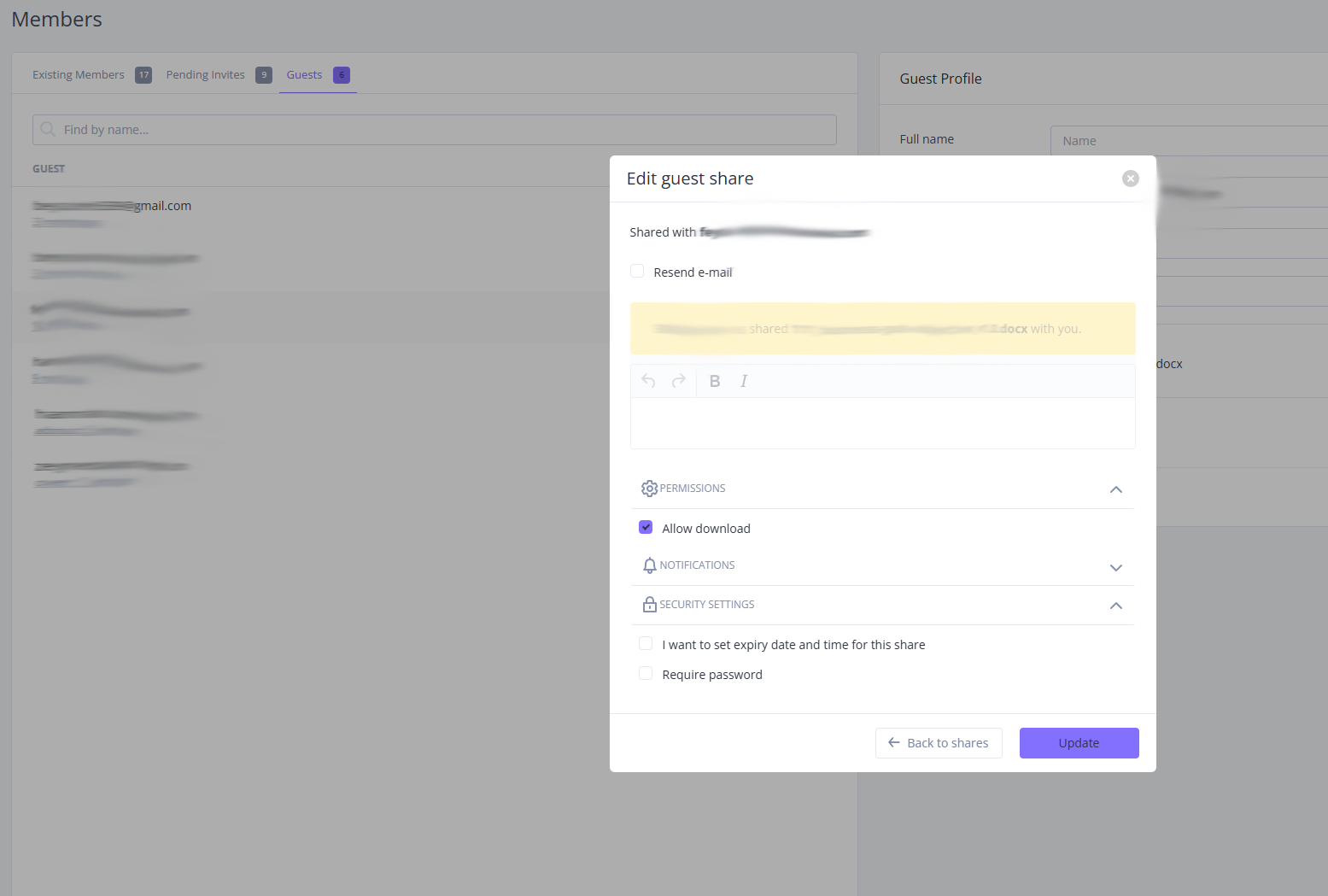
Clinked approaches this differently. Its centralized audit trail logs every access event in one readable place, without PowerShell scripts or stitching together exports from three different admin portals.
How to block or restrict SharePoint guest access
Sometimes the job is not enabling access but tightening or removing it.
Domain restrictions in the SharePoint admin center let you whitelist specific partner domains or block others entirely, useful when collaboration should be limited to known organizations.
Conditional Access policies in Entra ID can require guests to complete multi-factor authentication before reaching SharePoint content. For sensitive sites this is worth doing. Set it up under Entra admin center > Protection > Conditional Access, targeting guest users specifically.
For individual sites, setting the sharing level to "Only people in your organization" overrides the org-level setting and blocks external access entirely for that site. Similarly, limiting guest invitations to admins only in the Entra external collaboration settings removes the ability for regular users to create guest accounts through sharing.
For link-based sharing, default expiration periods for "Anyone" links can be set in the SharePoint admin center, so anonymous links stop working after a defined number of days rather than living forever.
Practically speaking, guests typically lose access within one hour of external sharing being restricted or disabled, which is useful to know when you need to act quickly on a security concern.
Limitations of SharePoint guest access
SharePoint guest access works. But there is a difference between something working and something working well for client collaboration. These are the structural limitations that come up consistently.
[fs-toc-omit]Complex multi-level configuration
A permission hierarchy spanning Entra ID, Microsoft 365 Groups, and the SharePoint Admin Center is inherently complex. The rule that the most restrictive setting at any level always wins sounds clean until you are troubleshooting why a setting you changed is not doing anything.
Microsoft's own community forums are a reliable record of this frustration. Admins who have enabled external sharing at every level and still cannot get it to work are not doing something wrong; the system genuinely behaves this way. One documented case shows site-level sharing settings reverting to "Only people in your organization" repeatedly despite org-level settings saying otherwise.
Platform-level changes make this worse. As of June 2024, invitations sent through the legacy SharePoint Invitation Manager no longer grant access, forcing organizations to reshare content. Then in July 2025, Microsoft invalidated all legacy external sharing links predating Entra B2B integration, breaking workflows that had been running without issue for years. Well-configured tenants got caught by this too.
[fs-toc-omit]Limited branding and white-label options
A guest visiting a SharePoint site sees Microsoft's interface, Microsoft's navigation, and Microsoft's branding. For internal use that is completely unremarkable. For client-facing work, it signals that the client is inside a generic file management tool rather than a professional space your organization has built for them.
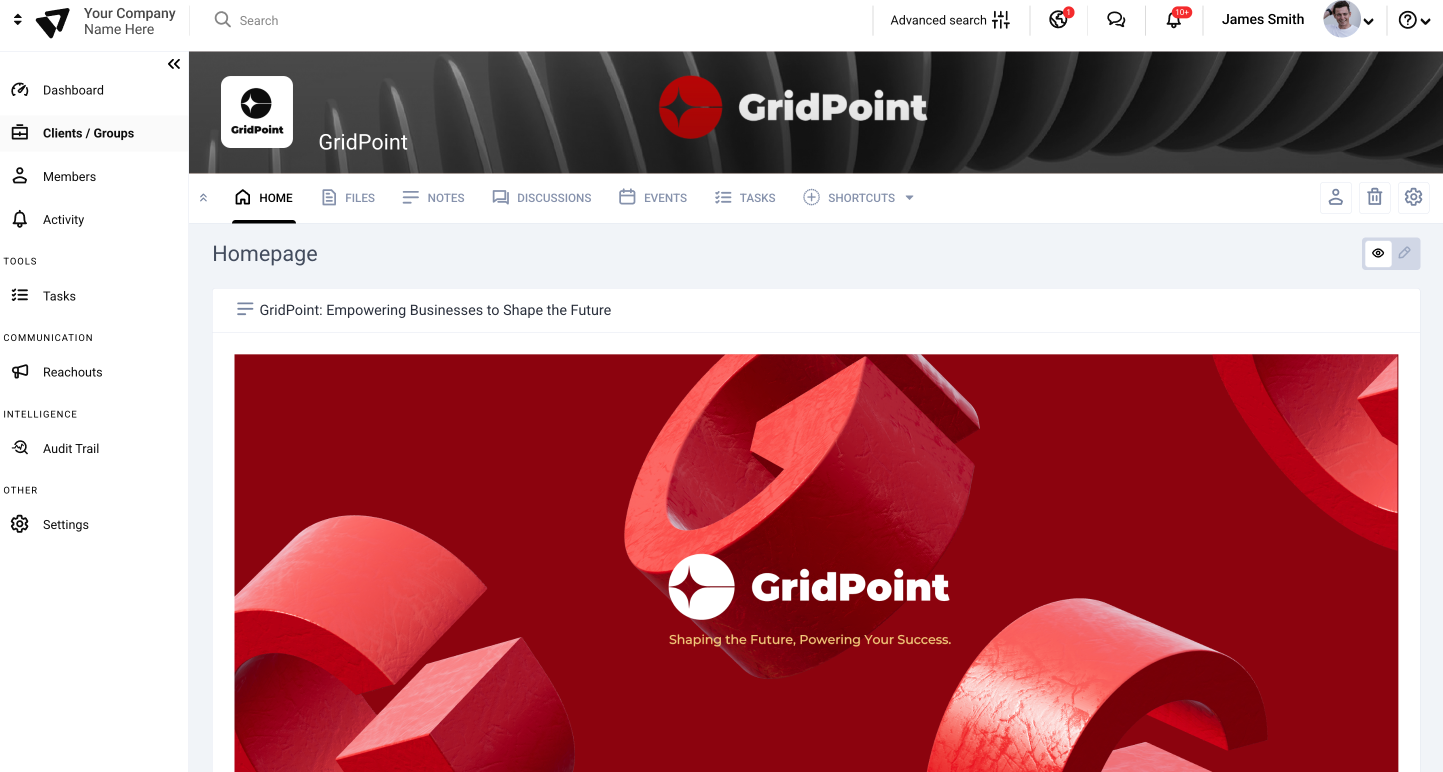
A white-label client portal is designed for exactly this. Clients see your logo, your domain, your colors. For agencies, financial advisors, law firms, and accountants where the client experience is part of the relationship, this matters.
[fs-toc-omit]Guest experience friction without Microsoft accounts
This is the complaint that comes up most reliably in user communities. A guest without a Microsoft account gets prompted for a one-time passcode that may land in spam. A guest who is already signed into a different Microsoft account, a personal one or a work account from their own organization, may find SharePoint authenticating against the wrong identity and blocking them entirely.
A service health incident documented in Microsoft's community forums took down guest access for classic SharePoint sites across multiple days with no confirmed resolution timeline. The people on the outside waiting to access a file do not know or care that it is a platform issue. They just know your link does not work.
Microsoft has also confirmed it will retire OTP authentication entirely by August 31, 2026, moving all external access to Entra B2B guest accounts. If your external sharing relies on OTP today, that migration needs to be on your radar.
Simplifying external collaboration with client portal software
There is a version of external collaboration that does not involve configuring three admin centers, chasing down why a permission setting is not taking effect, or calling a client to explain why a link stopped working.
For organizations where working with external people is a constant, whether that is agencies with clients, accountants with business owners, financial advisors with investors, or legal teams with clients, the cumulative cost of managing SharePoint guest access is real. It shows up in support tickets, in interrupted work, and in the client experience.
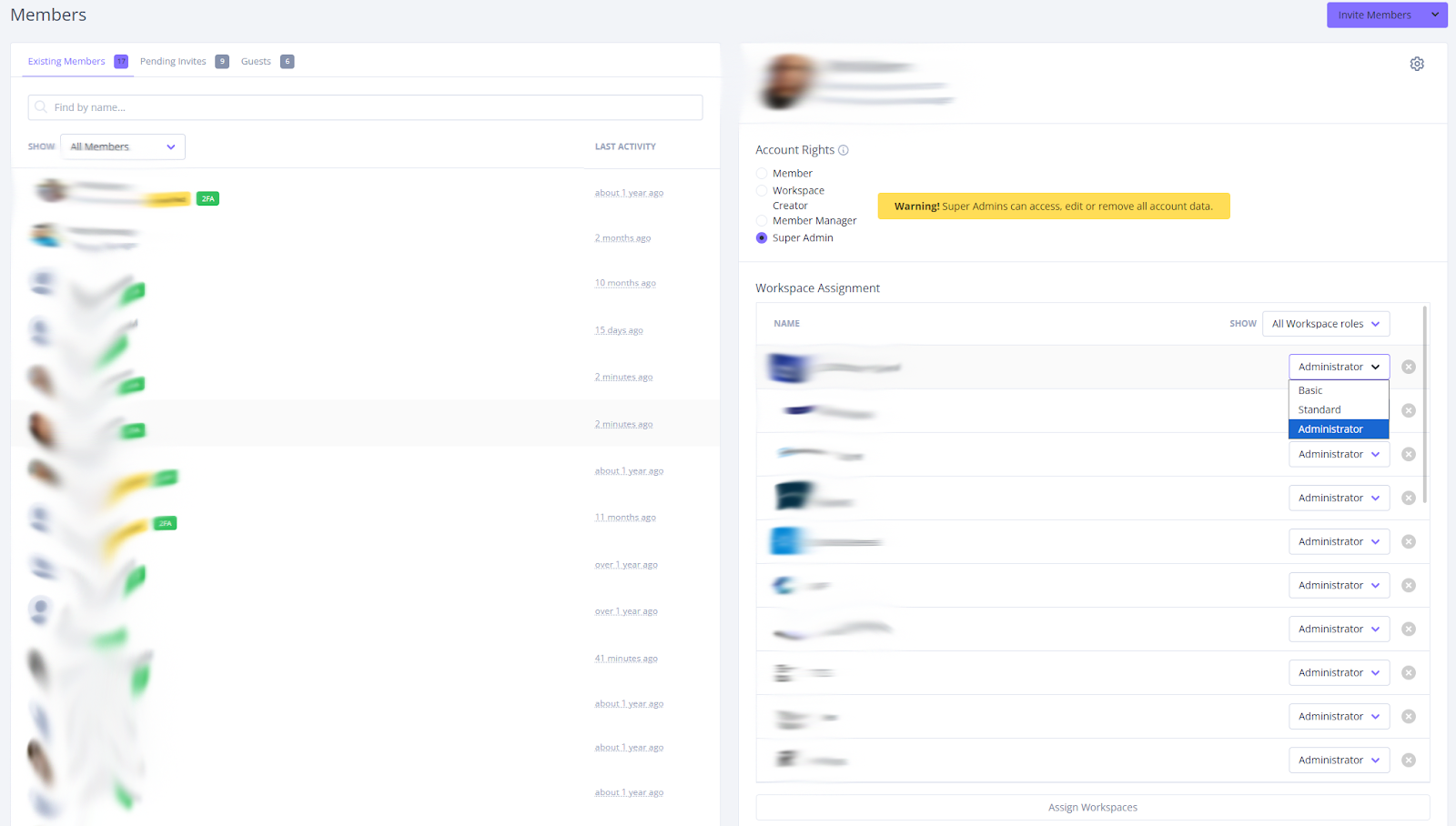
Built as a client collaboration platform where external access is the core use case, not an add-on, Clinked is worth a closer look. Access and permission controls live in one place. Clients do not need a Microsoft account to get in. And audit trail page gives you a clear record of who accessed what without a trip to the Purview compliance portal.
Clinked also holds ISO 27001 certification, which matters for regulated industries including financial services, legal, accounting, and healthcare.
If SharePoint guest access has become something your team manages rather than something that just works, it is worth asking whether the tool fits the job. Book a demo with Clinked to see what the alternative looks like.
FAQs about SharePoint guest access
[fs-toc-omit]Do guests need a Microsoft account to access SharePoint?
Not always. Guests can get in using email one-time passcode authentication, where SharePoint sends a verification code they use to confirm their identity. The process is smoother with a Microsoft account since authentication runs through the familiar Microsoft sign-in flow. Without one, guests may hit extra steps, find the code in their spam folder, or run into issues if they are already signed in under a different Microsoft account than the one you invited. Microsoft is also retiring OTP authentication entirely by August 31, 2026, so any external sharing that relies on it today will need to move to Entra B2B guest accounts before then.
If this kind of friction is something your clients run into regularly, a dedicated client portal removes it entirely.
[fs-toc-omit]How long does SharePoint guest access last before it expires?
It does not expire on its own. Without configuration, a guest account from three years ago may still have active access. To change this, you can set up Entra ID Access Reviews, which prompt admins to periodically confirm whether guest access should continue, or configure expiration policies on sharing links in the SharePoint admin center.
Dedicated access and permissions controls make managing this much more straightforward, without needing to set up separate review workflows across multiple tools.
[fs-toc-omit]Can guests access SharePoint sites and files from mobile devices?
Yes, through mobile web browsers or the SharePoint mobile app after signing in with their guest credentials. The experience mirrors the web, including the same authentication requirements and the same potential for friction if they do not have a Microsoft account.
Clinked has a dedicated mobile app for iOS and Android, giving external clients a proper app-native experience on mobile without the authentication complications that SharePoint guests often run into.
[fs-toc-omit]How do I remove a guest user from a SharePoint site?
Go to Site settings > Site permissions, find the user, and remove them from the relevant group. If you want to revoke access across everything at once, remove the guest account from Microsoft Entra ID. The Entra route is more thorough since removing someone from a single site leaves their guest account active and potentially able to reach other content they have been invited to.
In Clinked, removing a user from a workspace is a single action from one place. No cross-referencing admin centers, no residual access to worry about.
[fs-toc-omit]Is SharePoint guest access included in all Microsoft 365 subscription plans?
Guest access capabilities vary by plan. Business and enterprise subscriptions generally include external sharing features, while some entry-level plans restrict what guests can do. If you are not sure what your plan supports, the Microsoft 365 plan comparison page or your reseller can clarify.
If navigating plan restrictions is part of what makes SharePoint guest access feel more complicated than it should, straightforward portal pricing built around external collaboration from the start means no plan-level gates on getting clients through the door.
Photo by Microsoft 365 on Unsplash






.webp)

.webp)