


Managing who can access what in SharePoint is one of those tasks that looks straightforward on the surface. In practice, it tends to become one of the most time-consuming and frustrating aspects of running a SharePoint environment, and permission inheritance sits at the centre of it. This guide walks through how inheritance works, how to control it at every level of the hierarchy, and why many teams are choosing to move client-facing collaboration out of SharePoint entirely.
If you have already worked through SharePoint's access model and are wondering whether it has to be this complicated, the short answer is no. Clinked’s client portal is purpose-built around secure, structured collaboration with none of the inheritance overhead that SharePoint requires. But first, let's make sure you understand the system fully, because whether you are optimizing your current SharePoint setup or evaluating alternatives, knowing how permission inheritance actually works puts you in a much stronger position.
See also: SharePoint vs Clinked
What is permission inheritance in SharePoint
Permission inheritance is the default behaviour in SharePoint where child objects automatically receive the same access rights as their parent container. This creates a cascading effect from the site collection down through all its content. Think of it like a parent passing down traits to a child. In SharePoint, a parent site passes down its permissions to all the subsites, libraries, and files within it.
Three terms are worth knowing from the start:
- Inherited permissions: Access rights passed automatically from parent to child objects
- Parent object: The container (site, library, folder) that defines the original permissions
- Child object: Any item contained within the parent that receives those permissions
When this system works as intended, it is genuinely useful. A single permission update at the site level flows down automatically, with no need to touch every folder and file individually. The problems tend to start when that consistency gets interrupted by multiple breaks across the hierarchy. Teams that collaborate closely with external clients often find that SharePoint's inheritance model creates more governance risk than it resolves, which is one of the key reasons Clinked was built the way it was, with isolated client workspaces that require no inheritance configuration at all.
How permission inheritance works in SharePoint sites
Permissions in SharePoint flow down by default through a clear hierarchy, starting from the top-level site and cascading down to individual items.
Site collection level
The site collection is the top-level container where primary permissions are established, often through Microsoft 365 Groups. All content below this level inherits these permissions unless the inheritance is specifically broken.
Subsite level
Subsites automatically inherit permissions from their parent site. Inheritance can be broken at this level to create unique access for specific departments or projects.
Document library and list level
By default, document libraries and lists inherit permissions from the site they reside in. This is a common level where administrators break inheritance to secure sensitive content within a specific library.
Folder and item level
SharePoint folder permissions and individual files inherit from their parent library or folder. This is the most granular level of the hierarchy where permissions can be managed, and also where things get complicated most quickly.
For teams managing document management across multiple clients in SharePoint, this hierarchy becomes a real operational challenge. Each level where you break inheritance becomes its own administrative island.
How to access Microsoft file permissions in SharePoint
To view the current permissions on any SharePoint item, you can follow a clear navigation path.
1. Open the library or folder settings
Navigate to the specific library, folder, or file. Access its settings by clicking the gear icon (Settings) or the ellipsis menu (...).
2. Navigate to permission settings
From the settings menu, find and select the "Manage Access" or "Permissions for this document library" option, which may vary slightly depending on your SharePoint version.
3. Review the current inheritance status
The permissions page will display a status message at the top, indicating whether the item is inheriting permissions from its parent or has unique permissions.
How to check if a SharePoint folder has unique permissions
You can identify if a folder has unique permissions through visual indicators and by checking its settings. The "Manage Access" panel will show if the item has unique permissions, often with a different icon or label. Folders with unique permissions may also display a "Shared" icon with a small broken link symbol in the library view, indicating that inheritance is broken.
When a user is granted access to a specific item but not its parent site, SharePoint quietly assigns them "Limited Access" in the background. This is not something you configure directly — it happens automatically, and it is one of the most consistently confusing entries in SharePoint permission reports. If you want a full breakdown of how this and all other permission levels behave, our SharePoint permission levels guide covers every default level in detail.
How to break permission inheritance in SharePoint
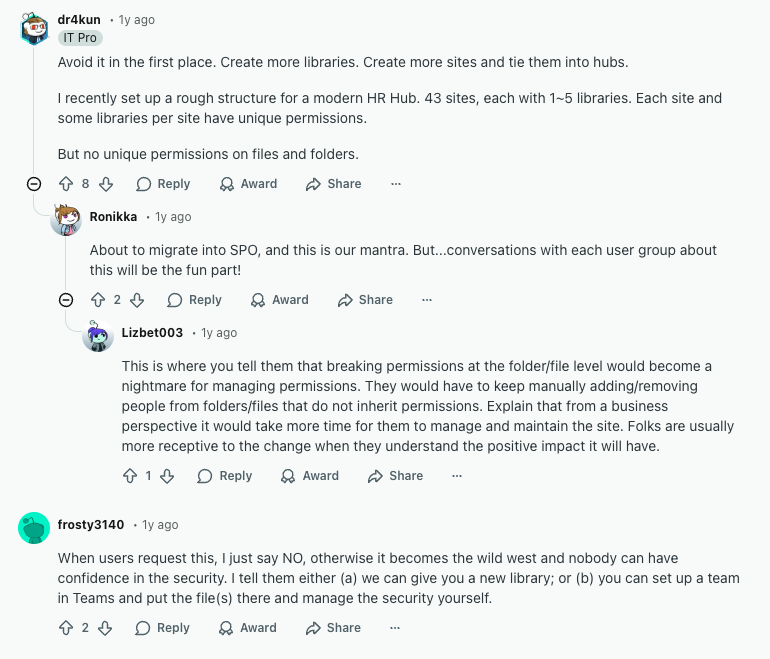
Stopping inheritance creates a permissions "island" for that content, meaning it must be managed independently from its parent. This is sometimes necessary, but it should be a deliberate, documented decision rather than a quick fix that gets forgotten. SharePoint administrators regularly wrestle with exactly this challenge, as discussed in this thread on the SharePoint subreddit.
1. Select the folder or item
Navigate to and select the specific folder, library, or file that requires unique permissions.
2. Open advanced permission settings
Click "Manage Access" and then select "Advanced" to open the full permission controls page.
3. Stop inheriting permissions
In the ribbon at the top of the advanced permissions page, click the "Stop Inheriting Permissions" button. This action disconnects the item from its parent's permission set.
4. Confirm the inheritance break
SharePoint will prompt you to confirm. After breaking inheritance, it copies the existing permissions from the parent as a starting point, which you can then modify.
One hard limit worth knowing: when a list, library, or folder contains more than 100,000 items, you cannot break permission inheritance on it, and you also cannot restore it. This catches many migrated file server environments completely off guard. The workaround involves temporarily moving content to a new library, breaking inheritance on the original once it is under the threshold, and then moving content back. It is as involved as it sounds.
Microsoft also recommends keeping unique permissions under 5,000 per library for acceptable performance. Beyond that threshold, queries slow down and the site becomes harder to manage, a ceiling that is easier to hit than most administrators expect.
How to assign unique permissions after breaking inheritance
Once inheritance is broken, you can modify the access list to grant, edit, or remove permissions for specific users and groups.
Adding users or SharePoint groups
Use the "Grant Permissions" option to add new users or SharePoint groups and assign them access to the item.
Selecting the appropriate permission level
When granting access, you must choose a permission level that defines what actions the user can perform.
- Full Control: Complete administrative access, including the ability to manage permissions.
- Edit: Can add, edit, and delete content but cannot manage permissions.
- Read: View-only access with no ability to edit or delete content.
- Contribute: Can add, update, and delete list items and documents.
Teams dealing with external collaborators often find SharePoint's permission levels ill-suited to client relationships, either too permissive or not granular enough for the use case. Clinked's access and permissions features are structured around a four-role model — Account Administrator, Group Administrator, Group Contributor, and Group Member — that maps cleanly to how client-facing teams actually work. There is no inheritance logic to untangle, and managing members and permissions is something most teams complete in minutes.
Removing inherited users or groups
After breaking inheritance, you can select any user or group from the copied list and use the "Remove User Permissions" option to revoke their access if it is no longer needed.
How to manage SharePoint folder permissions
Folders with unique permissions require ongoing management to ensure security and prevent access issues.
Changing permission levels for existing users
To modify a user's access, select them from the permissions list and click "Edit User Permissions" to assign a different level, for example changing from "Read" to "Edit."
Removing user access from a folder
To revoke access entirely, select the user or group from the permissions list and click "Remove User Permissions."
Checking permissions on individual files
Individual files within a folder can also have their own unique permissions. You can check a file's specific permissions using the same "Manage Access" process to verify who has access.
Once inheritance is broken at multiple levels across sites, document libraries, folders, and individual items, maintaining a clear picture of who can access what becomes genuinely difficult. Each uniquely permissioned item must be audited independently, and entries accumulate over time as teams grow, projects change, and personnel turns over. This is one of the most consistently cited frustrations in the SharePoint administrator community, and a major reason many organisations with active client collaboration move to dedicated client collaboration software.
How to share a library in SharePoint with specific permissions
You can grant access to an entire document library for internal or external users through sharing links or direct permission grants. This is different from assigning permissions directly, as sharing often creates a link with defined access levels (view or edit) that can be revoked separately.
For external collaborators specifically, sharing links are generally more manageable than breaking inheritance at the library level. They are easier to track and easier to revoke. That said, SharePoint's external sharing settings are easy to misconfigure, and anonymous links can persist long after a project ends. This is a recurring problem covered in depth in our article on SharePoint issues.
For teams that regularly share content with clients, a dedicated file sharing environment removes this risk entirely. Clinked's file sharing features are built specifically around secure external collaboration. Every share is tracked, every access event is logged, and there are no anonymous links to chase down after the fact.
How to restore permission inheritance in SharePoint
If unique permissions are no longer needed, you can restore inheritance from the parent container. This action permanently deletes all unique permissions you have set on the item, and there is no undo.
1. Open the folder or item permission settings
Navigate to the advanced permission settings for the item with unique permissions.
2. Select delete unique permissions
In the ribbon, click the "Delete Unique Permissions" or "Inherit Permissions" button.
3. Confirm inheritance restoration
A warning will appear confirming that all custom settings will be removed. Once confirmed, the item immediately inherits all permissions from its parent.
Best practices for managing SharePoint permission inheritance
To avoid complex security management, use inheritance wherever possible and follow structured practices from the start.
Use SharePoint groups instead of individual assignments
Assigning permissions to SharePoint groups rather than individual users simplifies long-term management significantly. When a team member joins or leaves, you update the group once, not the permissions on every individually secured item. This is particularly important for client management scenarios, where personnel changes are frequent and access control errors carry real risk.
Minimize breaking inheritance when possible
Sites with thousands of uniquely permissioned items run slower and become exponentially harder to audit. Permanent unique permissions on individual folders should be avoided wherever possible. If content genuinely requires different access from its parent library, the better answer is usually a separate library or a separate site, not a folder buried inside an existing structure with a broken inheritance chain.
Document your permission structure
Maintain a record of where inheritance is broken and why. This matters for onboarding new administrators, responding to security audits, and understanding your own environment when something goes wrong. A simple list is enough. The important thing is that the record exists and stays current.
Audit permissions regularly
Periodically review permissions across your sites, particularly on items with broken inheritance. The goal is to remove orphaned entries, revoke access that is no longer needed, and catch configurations that drifted from what was originally intended. Quarterly reviews are a reasonable cadence for most organisations. For teams handling regulated data in legal, financial services, accounting, or healthcare environments, more frequent reviews are standard practice.
Consider simpler alternatives for client collaboration
Instead of creating fine-grained permission structures within a single SharePoint site, it is often simpler and more secure to create separate, dedicated sites or libraries for different clients or projects. For teams where the management overhead of even that approach has become a burden, dedicated client portal solutions like Clinked are worth serious consideration. Each client group lives in its own isolated workspace, permissions are role-based from day one, and there is no inheritance hierarchy to monitor or maintain.
A simpler approach to permission management for client portals
When SharePoint's permission complexity becomes unmanageable for client-facing collaboration, Clinked offers a purpose-built alternative. Rather than adding access controls to a general-purpose enterprise platform, Clinked's white-label client portals are designed from the ground up around structured, secure external collaboration.
No inheritance to manage. Each client workspace in Clinked is isolated by design. There are no parent-child permission chains, no "Limited Access" entries appearing unexpectedly, and no risk of a permission change cascading to content it should not touch. If you need to give a client access to one folder but not another, that is a simple toggle, not a multi-step inheritance break.
The permission model also maps to how teams actually work. Clinked uses four clearly defined roles — Account Administrator, Group Administrator, Group Contributor, and Group Member — each with a well-defined scope. You can read more about how this works in our post on managing client portal members and permissions.
Audit trails are built in from the start. Clinked's data protection and compliance features include detailed activity logs covering file access, uploads, permission changes, and comments, all visible in real time through the activity stream. In SharePoint, equivalent visibility requires a separate compliance configuration and often additional licensing.
On the security side, Clinked is ISO 27001 certified, SOC 2 compliant, GDPR covered, and HIPAA-ready. For industries where data governance is non-negotiable, whether in insurance, investment management, real estate, or M&A, these certifications matter, and they come without requiring you to build a compliance layer on top of a complex permission structure.
Unlike SharePoint, which is unmistakably a Microsoft product, Clinked's customisation features let you present a fully branded portal to your clients, with a custom domain, branded email notifications, and white-label mobile apps. When clients log in, they see your brand.
If you are weighing the total cost of running SharePoint for client collaboration, our SharePoint cost guide breaks it all down with real numbers, including setup, licensing, customisation, and the ongoing administrative time that broken inheritance creates.
Book a demo with Clinked to see how access management works in a platform built for client collaboration from the ground up.
FAQs about SharePoint permission inheritance
What happens to permissions when I move files between SharePoint folders?
When you move a file to a new folder, it inherits the permissions of the destination folder, losing any unique permissions it previously had. Always verify permissions after significant content moves, particularly for sensitive documents.
Can I set unique permissions for individual files without affecting the parent folder?
Yes, you can break inheritance at the file level to assign unique permissions while the parent folder maintains its existing permission structure. Use this sparingly, as file-level unique permissions are the hardest to track and audit at scale.
How does SharePoint permission inheritance affect external sharing settings?
External sharing is controlled at the site collection and organisation level, and inheritance determines whether child objects can be shared externally based on parent settings. Sharing a folder or file directly with an external user breaks inheritance on that item automatically, which is a common source of untracked access that compounds over time.
What is the difference between SharePoint groups and Microsoft 365 groups for permissions?
SharePoint groups are site-specific permission containers, while Microsoft 365 groups provide membership across multiple services including SharePoint, Teams, and Outlook. On modern, Teams-connected SharePoint sites, Microsoft recommends managing access through Microsoft 365 group membership rather than SharePoint groups directly.
How do I find all locations with broken inheritance across a SharePoint site collection?
You can use SharePoint's site collection administration settings or PowerShell scripts, specifically the PnP PowerShell module, to generate reports identifying all objects with unique permissions. There is no native, point-and-click way to get a complete picture, which is itself a meaningful signal about how complex the permission landscape can become.






.webp)

.webp)