

You send a client access to a document on Monday. They confirm they've got it. By Wednesday, they're emailing back saying the link doesn't work anymore. You check permissions. Everything looks fine on your end. You resend the invite. They get a verification code. It doesn't arrive. Or it does arrive, but expires before they can use it. You send another one.
These aren't one-off SharePoint issues. External sharing works one day and fails the next. Clients who accessed files last week suddenly can't get in this week. Teams keep re-inviting the same external users, again and again. Verification codes vanish into the ether. Links that worked perfectly yesterday show error message alerts today.
The question everyone's asking is "how to fix it", but the one they should be asking is "why is this happening at all"?
You're not imagining the repetition. Starting July 2025, Microsoft invalidated all legacy external sharing links in SharePoint and OneDrive created before organizations enabled Microsoft Entra B2B integration. That means anyone accessing content through an old one-time passcode link now sees errors instead. This wasn't a bug. This was a planned architectural change that affected countless existing workflows.
Your team isn't doing anything wrong. The issue with SharePoint is that its sharing model keeps changing, and each evolution breaks something that used to work.
When you're troubleshooting the same access issue for the third time this month, it's easy to feel like you're missing something obvious. You're not. This platform's external collaboration features just require constant maintenance.
Meanwhile, your clients aren't asking to understand SharePoint's access or permission inheritance model, nor the difference between "Anyone" links and authenticated guest access. They just want to open the file you sent them.
See also: SharePoint alternatives and SharePoint vs Clinked
The difference between temporary problems and structural SharePoint issues
You can fix a broken link, restore access for an external user, or adjust permission settings. The issue is resolved. Everyone moves on. But what if two weeks later, it's back? Maybe not exactly the same way, but close enough that you're repeating the same troubleshooting steps.
This pattern shows a common SharePoint issue: links work when manually selected from the copy link and emailed, but users are unable to share from within documents or libraries. Teams configure sharing settings at the tenant level, then discover that site-level permissions are blocking what they just enabled. Access works fine internally, then breaks the moment an external user gets involved.
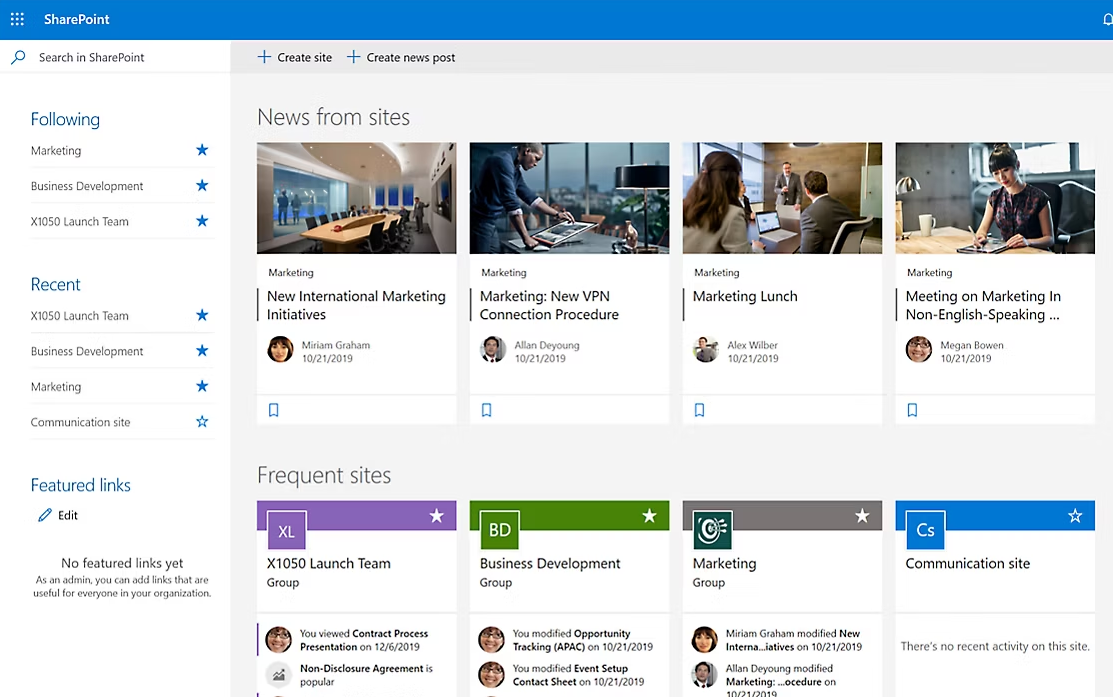
The recurring nature of these issues with SharePoint is structural, not random.
Think about what happens when you grant external access in SharePoint. You're not just setting a simple on/off switch. You're navigating a hierarchy of controls spanning organization-level policies, site-level configurations, document-level permissions, and user-level authentication states. Each layer can override the one below it. When you break permission inheritance at any level, you create a unique permission configuration that needs to be managed separately from inherited permissions. Change one setting, and you might affect dozens of shared links across multiple sites.
This complexity means documents can disappear into a black hole that lacks a clear structure or easy search. Plus, when content authors leave, and permissions aren't documented, that institutional knowledge disappears permanently.
These are all symptoms of a system designed for internal collaboration trying to accommodate external sharing as an add-on feature. The various issues compound because each fix addresses the immediate problem without changing the underlying mismatch.
Think about how external sharing actually works in SharePoint Online. When you share a file with someone outside your organization, SharePoint creates a guest account, assigns permissions, generates authentication tokens, and maintains that relationship across multiple systems. Microsoft Teams, OneDrive sync, SharePoint sites, Office web apps, and Outlook integrations all need to stay coordinated. Any disconnect in that chain can break access.
Sure, you can troubleshoot each instance individually. But if the root cause is architectural, those SharePoint known issues will keep surfacing. Teams end up in repetitive nightmares of re-sharing links, re-checking settings, and re-sending invitations.
When SharePoint works well... and when it starts to break down
SharePoint Online isn't all bad, of course. For internal teams working on shared files within the same organization, it's genuinely useful. Your colleagues can co-edit documents, permissions follow organizational hierarchies, and authentication happens seamlessly because everyone's already logged into the same Microsoft 365 environment (and trained on it).
Your team members navigate SharePoint sites, find documents through search, and understand the structure. They know which document libraries contain which files. They can upload new files to the right folders, check compatibility before syncing large files, and edit web parts when pages need updates.
The problems start when external users get involved:
- Your team creates a proposal in SharePoint.
- You need to share it with a client for review.
- You generate a sharing link.
- The client clicks it and hits a wall.
- SharePoint asks them to sign in with a Microsoft account. They don't have one. Or they do, but they're signed in with a different email address than the one you sent the invite to. Or they're using their company's Microsoft account, which triggers your tenant's conditional access policies and blocks them.
SharePoint assumes everyone accessing content has an identity managed within the Microsoft ecosystem. For internal users, that assumption holds. For external clients, it's constant problems.
The platform was designed as a model of document management and collaboration where users share organizational context, security policies, and authentication systems. When you ask it to support client collaboration, you're using it outside its original design parameters.
"Anyone" links were supposed to solve this. Organizations needed a way to share files with external parties without forcing them through Microsoft account creation.
But now, it's a toss-up if the external clients' link works or not. When it doesn't, they can't troubleshoot. They don't have access to permission settings, can't see site configurations, and definitely can't address network connectivity issues or sync conflicts on your end. All that's left is to message and wait.
This creates a support burden on your team, which spends time troubleshooting Microsoft SharePoint issues. You check permission inheritance, verify sync status, confirm that the latest version is accessible, and edit permission settings across sites. Meanwhile, the client just wants to check a file.
The same complexity needed for internal governance becomes friction when the use case is just to let a client read your proposal.
SharePoint's security model compounds this. It's built around network connectivity, device compliance, and conditional access policies designed for managed endpoints. When external users access files from personal devices on public networks, every security layer becomes a potential point of failure. File path errors, sync issues with large files, broken links...
Plus, when you share a SharePoint page with embedded content, external users on slower connections might experience slower performance than internal users do. Custom web parts built with SharePoint Framework or third-party tools can add even more data loading delays.
See also: Customer portal 101
The cost of treating every SharePoint issue as a fixable problem
Every time external sharing breaks, someone on your team stops what they're doing to fix it. They check permission settings. Verify the file name doesn't contain special characters that might break the file path. Confirm the SharePoint sync status. Re-send the link. Walk the client through signing in. Check if their Microsoft account matches the invited email address. Troubleshoot network connectivity issues on a device that they can't access.
For organizations relying on SharePoint as a client collaboration tool, this means ongoing maintenance.

The interruption cost adds up in ways that don't show up on invoices. Your project manager pauses work to resolve a sharing error. Your designer can't move forward until the client approves mockups that they can't access. Your consultant spends 15 minutes on a call explaining how to accept a SharePoint invitation instead of advising on strategy. None of this appears in the software licensing fees or storage costs, but it sure drains productivity.
Then there's the attention cost. SharePoint issues with external sharing don't arrive on a schedule. They surface when clients try to access files, which interrupts whatever your team is currently working on. Each interruption requires dropping the task, diagnosing the problem, implementing the fix, and then trying to return to what you were doing before.
The ongoing cognitive load of managing multiple users across a platform where permissions can change, links can expire, and access that worked yesterday might not work today is huge. Even experienced admins struggle when troubleshooting syncing errors, resolving compatibility issues across different browser versions, or addressing alerts about failed uploads to document libraries.
And when you can't resolve these issues right away, the client is blocked, waiting to complete their part of the project. Your timeline slips. The delay cascades. What started as a simple sharing error becomes a bottleneck affecting the entire project status.
You may find yourself implementing workarounds, like emailing files as attachments instead. Or maybe grant broader permissions than necessary. Or create public "Anyone" links for documents that should probably have tighter access controls. In that case, you're also trading security for reliability.
The governance burden compounds over time, with more external collaborators, guest accounts, shared links, and site permissions. Who has access to what? Which links are still active? When were these permissions granted, and do they still apply?
Sure, you could invest in better documentation, more thorough training, stricter permission policies, and regular accessibility audits. But ask yourself this: how much time (and money) should you invest to mold a platform into working for a use case it's not designed to handle?
Every hour spent troubleshooting SharePoint is an hour not spent on actual work.
See also: Client portal features your customers actually want (and you need)
A question worth asking before the next fix of common SharePoint issues
The next time external sharing breaks, you'll probably fix it.
But why should you be solving this problem again?
No configuration will fundamentally change how SharePoint works. You can optimize permission settings, implement best practices, re-fix broken links, train users, and still encounter the same issues tomorrow.
Let's paint the perfect picture of client collaboration together:
- The client receives access only to what they need to see. They don't need to create accounts, navigate unfamiliar interfaces, or troubleshoot authentication errors.
- Files are always accessible when they need them.
- Permissions are simple enough to understand and manage.
- The platform doesn't generate ongoing support work.
Microsoft's shift to Entra B2B integration, the deprecation of legacy invitation systems, and the constant refinement of security policies all reflect Microsoft's attempts to make the platform safer and more manageable for enterprises. These are good changes for SharePoint as an enterprise content management system.
SharePoint will always prioritize organizational control, security, governance, and integration with Microsoft 365 services because that's what it's designed to do. External client collaboration will always be a secondary use case, which means it will always carry more friction than internal collaboration.
The question isn't whether you can make SharePoint work for client collaboration. Clearly you can (and many organizations do). The question is whether you should, given the accumulated cost of making it work compared to using something designed for this purpose.
See also: Best client portal software
FAQs
Why do SharePoint permissions keep changing on documents shared with multiple users?
SharePoint permissions don't change on their own; it's how they're managed across multiple layers. SharePoint uses a hierarchy of controls spanning organization-level policies, site-level configurations, document-level permissions, and user-level authentication states. Each layer can override the one below it.
When you break permission inheritance at any level, you create a unique configuration that must be managed separately, affecting dozens of shared links across multiple sites. When external users are involved, authentication tokens, guest accounts, and access permissions must stay coordinated across Microsoft Teams, OneDrive, SharePoint sites, and Office web apps. Any disconnect in this chain breaks access. The interconnected system requires constant maintenance, and changes in one area ripple through others in unpredictable ways.
When should I use SharePoint for document management and sensitive information versus a dedicated client portal?
You can use SharePoint for internal document management when your team shares organizational context, security policies, and authentication systems within Microsoft 365.
Consider a dedicated client portal when external collaboration is the primary use case. SharePoint treats external sharing as an add-on feature, creating friction through forced Microsoft account creation, complex permission hierarchies, conditional access policies, and ongoing authentication issues.
What's the difference between SharePoint organization-level and site-level sharing settings?
Organization-level (tenant-level) sharing settings establish the broadest permissions across your entire SharePoint environment. These settings determine what types of sharing are allowed throughout the organization: whether external sharing is enabled, whether "Anyone" links are permitted, and what authentication requirements external users must meet.
Site-level sharing settings apply to individual SharePoint sites and can be more restrictive than organization-level settings. You might enable external sharing at the organization level, then discover that specific sites have additional restrictions that block what you just enabled. This creates a common troubleshooting scenario where admins configure settings at one level, only to find that another level is preventing the expected behavior.
Document-level permissions add another layer, allowing you to control access to individual files or folders. When you break permission inheritance at the document level, you create configurations that must be managed separately from both site-level and organization-level settings.
What are the most common issues with SharePoint?
The most common SharePoint issues center around external sharing, access management, permission controls, sync issues, broken links and verification codes.
Performance and usability issues include slow loading times for external users on public networks, custom web parts that add loading delays, and documents disappearing into poorly organized document libraries without clear structure or easy search functionality.







.webp)

.webp)