.webp)


Managing who can access what in SharePoint is one of those tasks that looks straightforward until it isn't. Between broken inheritance, mysterious Limited Access entries, and the gap between what Contribute and Edit actually allow, many administrators end up with a permission structure nobody fully understands.
This guide walks through every default permission level, explains how groups and inheritance work, and covers the practical steps to manage access in SharePoint Online and on-premises. Where SharePoint's complexity becomes a liability, particularly in client-facing environments, we'll also show how Clinked’s client portal handles access in a way that's purpose-built and far simpler to govern.
See also: SharePoint vs Clinked
What Are SharePoint Permission Levels
SharePoint permission levels are predefined sets of permissions that control what users can do on a site, list, library, or individual document. Rather than assigning dozens of individual capabilities one by one, permission levels bundle related rights into a single assignable role.
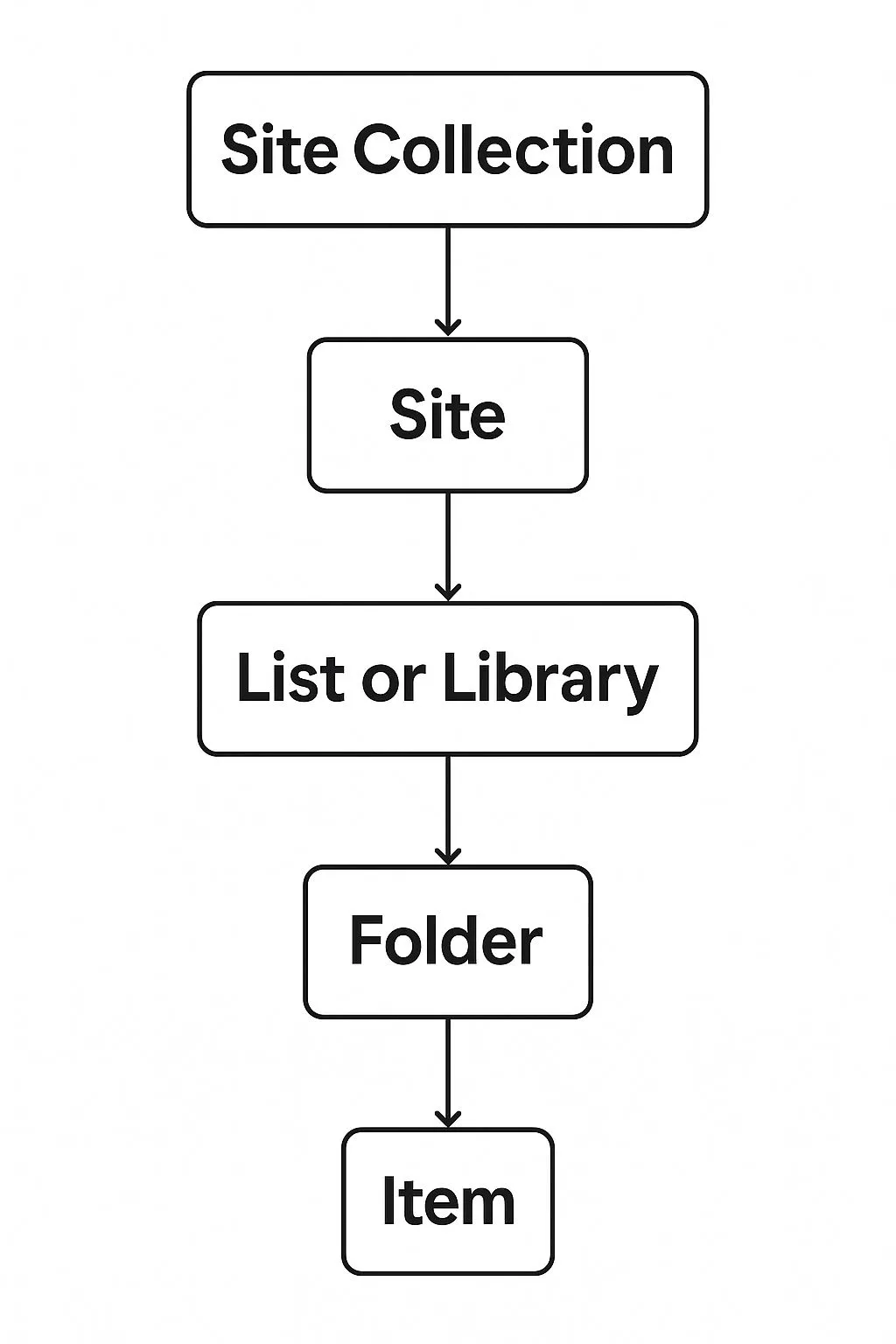
Permission levels operate across a hierarchy: site collection, subsite, library or list, folder, and individual item. By default, each layer inherits the permissions set above it, which keeps things consistent. Breaking that inheritance at any level is where complexity starts to accumulate.
Why Permission Levels Matter for Access Management
Properly configured SharePoint permissions serve two equally important purposes: security and compliance. Misconfigured access is one of the leading causes of data exposure, with cloud misconfigurations responsible for 19% of all breaches in 2025. When permissions are too loose, sensitive documents become visible to the wrong people. When they're too tight, legitimate users get blocked and find workarounds that create even bigger gaps.
Regulations like GDPR, ISO 27001, HIPAA, and SOC 2 all require demonstrable control over who can access what. Getting SharePoint permissions right is foundational to your organisation's security posture and regulatory standing.
This is one area where purpose-built platforms have an edge. Clinked’s access and permissions features are designed specifically around controlled, auditable collaboration rather than being layered onto a general-purpose enterprise platform. For teams handling regulated data, that distinction matters.
Default SharePoint Permission Levels Explained
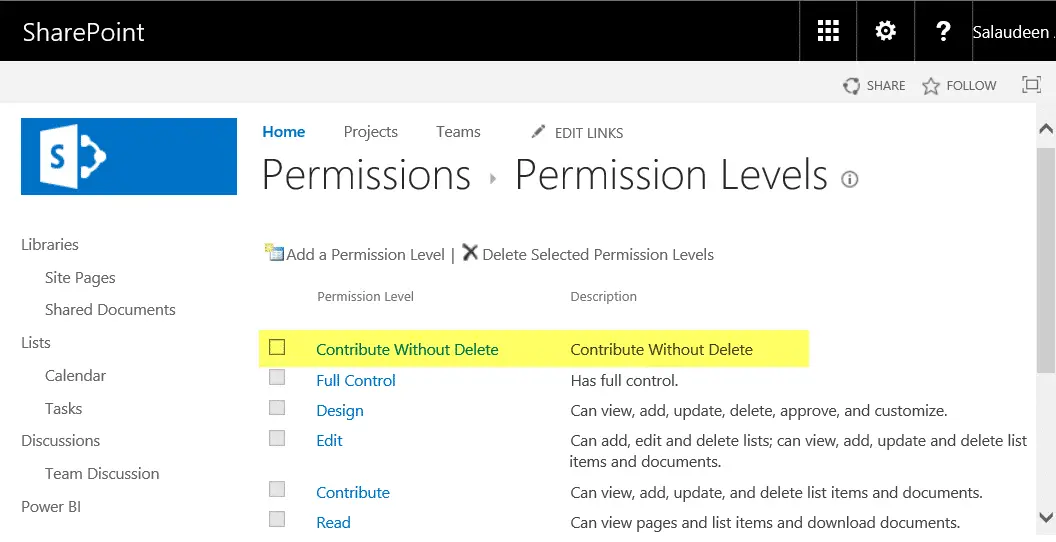
SharePoint comes with seven built-in permission levels that cover the vast majority of use cases, from complete administrative control down to browser-only document previewing.
Full Control
Full Control is the highest permission level and should be treated accordingly. Users with Full Control can add, edit, and delete all content, create and delete document libraries and lists, manage site settings, change site permissions for any user or group, and delete the site itself.
Because Full Control includes the ability to modify permissions, assigning it carelessly creates a significant governance risk. Reserve this level exclusively for designated site owners and IT administrators, and audit who holds it regularly.
Design
The Design permission level allows users to customise the look and feel of a SharePoint site, manage page layouts, and work with content types and themes. Design-level users can also create, edit, and delete items, and approve or reject content in libraries with approval workflows.
Critically, Design users cannot change site permissions or delete the site. This makes it ideal for web designers or intranet managers who need to shape the site experience without touching the access control layer.
Edit
Edit is the default permission level assigned to the Members group. It covers the full content management lifecycle, including creating, editing, and deleting items, and creating and deleting the lists and libraries themselves. The ability to create and delete lists is what separates Edit from Contribute.
Contribute
Contribute is one of the most commonly used permission levels for everyday users. Users with Contribute can upload documents, create list entries, edit existing items, and delete content. What they cannot do is create new lists or libraries, or change the settings of existing ones. They work within structures that already exist.
Read
Read provides straightforward view-only access. Users can open pages, browse list items, and download documents, but they cannot change anything. This is the right level for stakeholders who need visibility into project progress without touching the underlying files.
Limited Access
Limited Access is not a permission level you assign directly. SharePoint applies it automatically when a user is granted access to a specific item within a library but doesn't have access to the parent site or library. Many administrators are puzzled when they first see it appearing in permission reports. It's not a bug; it's SharePoint's mechanism for enabling granular item-level access without full site visibility.
View Only
View Only allows users to open and preview documents in the browser but not download them. This makes it valuable for protecting proprietary documents, sharing compliance materials without allowing local copies, or distributing confidential reports to external stakeholders during due diligence.
For teams regularly sharing sensitive documents with clients, it's worth knowing that Clinked’s virtual data room builds this kind of granular view and download control directly into the platform, alongside detailed audit trails that track exactly who accessed what and when.
SharePoint Groups and Permission Levels
SharePoint security groups are collections of users who share the same permission level on a site. Rather than assigning permissions user by user, you assign a permission level to a group and add users to that group. When access needs change, you update the group and all members are affected at once.
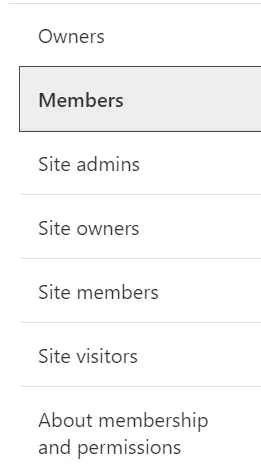
Every SharePoint site automatically creates three default groups when it's provisioned.
Owners Group
The Owners group is assigned Full Control. This group handles site administration: adding and removing members, configuring site settings, and managing navigation. Only trusted administrators and site owners should belong to this group.
Members Group
The Members group is assigned Edit permissions by default. This is where most active collaborators live. Members can create, upload, edit, and organise content without being able to change the permission structure. In most organisations, this group is the largest and changes most frequently.
Visitors Group
The Visitors group is assigned Read permissions. This is for people who need to see what's happening on a site without contributing to it: senior leadership, external stakeholders, or clients who need periodic visibility without edit access.
How Groups and Permission Levels Work Together
The relationship is straightforward in principle:
- SharePoint groups are containers for users who share the same access needs
- Permission levels define the specific actions those users can perform
- Assignment works by linking a permission level to a group; change the level once, and every group member is updated
- Individual assignments are possible but create long-term management complexity and should be avoided where possible
Best practice is to assign permissions to groups rather than individuals. This keeps your permission model clean, auditable, and scalable.
If this kind of structured, role-based access sounds like what you need but SharePoint feels like too much infrastructure for the job, Clinked's collaboration tools offer a simpler four-role model (Account Administrator, Group Administrator, Group Contributor, and Group Member) that most teams can configure in minutes rather than hours.
The defining difference is the ability to manage permissions. An Owner can grant or revoke access for any user; a Member cannot. This is why the principle of least privilege matters: if a Member-level user doesn't need to control who else has access, there's no justification for elevating them to Owner.
How Permission Inheritance Works in SharePoint
By default, everything in SharePoint inherits its permissions from the layer above it. A document library inherits from its site. A folder inherits from its library. An individual document inherits from its folder. When you update permissions at the site level, those changes flow down automatically to everything below.
The hierarchy runs: Site Collection → Subsite → List/Library → Folder → Individual Item
When to Break Permission Inheritance
There are legitimate reasons to break inheritance and apply unique permissions at a lower level. Common scenarios include a confidential folder within a shared library that only the executive team should access, or a single sensitive document in an otherwise open project library.
When you break inheritance, SharePoint creates a separate, independent set of permissions for that item. Changes to the parent's permissions will no longer affect it automatically.
The challenge is management complexity. What starts as a straightforward structure can quickly evolve into a tangle of broken inheritance, custom permission levels, and mysterious Limited Access entries. This is one of the most commonly cited frustrations in SharePoint administrator communities, and it's a significant reason many organisations look for more purpose-built document management solutions for their client-facing work.
Break inheritance sparingly, document every instance, and structure your sites so that content with different access needs lives in separate libraries or sites rather than buried in folders.
How to Restore Permission Inheritance
To restore inheritance:
- Navigate to the library, folder, or item with unique permissions
- Open Library/List Settings and select Permissions for this library
- Click Delete Unique Permissions in the ribbon
- Confirm the action
This permanently deletes the unique permissions for that item and reverts it to inheriting from its parent. The action cannot be undone.
SharePoint Contribute vs Edit Permissions
This is one of the most searched comparisons in SharePoint, and understandably so. The two levels feel similar but the operational difference affects how your sites are structured and governed.
What Contribute Permissions Allow
- Add items: Upload documents and create new list entries
- Edit items: Modify existing files, list items, and their metadata
- Delete items: Remove content they or others have added
- Cannot: Create new lists or libraries, change library settings, or manage existing library structure
What Edit Permissions Allow
Edit includes everything Contribute does, plus the ability to create new lists and document libraries, delete existing lists and libraries, and manage documents in libraries including version and approval settings.
When to Use Contribute vs Edit
Use Contribute when users should work within existing structures, adding and editing content in libraries and lists that already exist. This suits frontline workers, data entry roles, or external collaborators contributing to specific workstreams.
Use Edit when users need the ability to create new libraries or lists as part of their workflow. This suits project managers, team leads, and power users who are actively building and organising SharePoint structures, not just populating them.
How to Create Custom Permission Levels in SharePoint
The seven default permission levels cover most scenarios, but some organisations have requirements that fall between the defaults. A custom permission level lets you combine individual base permissions to build exactly the right access profile.
1. Navigate to Site Settings
From your SharePoint site, click the gear icon in the top right and select Site Settings.
2. Access Permission Levels
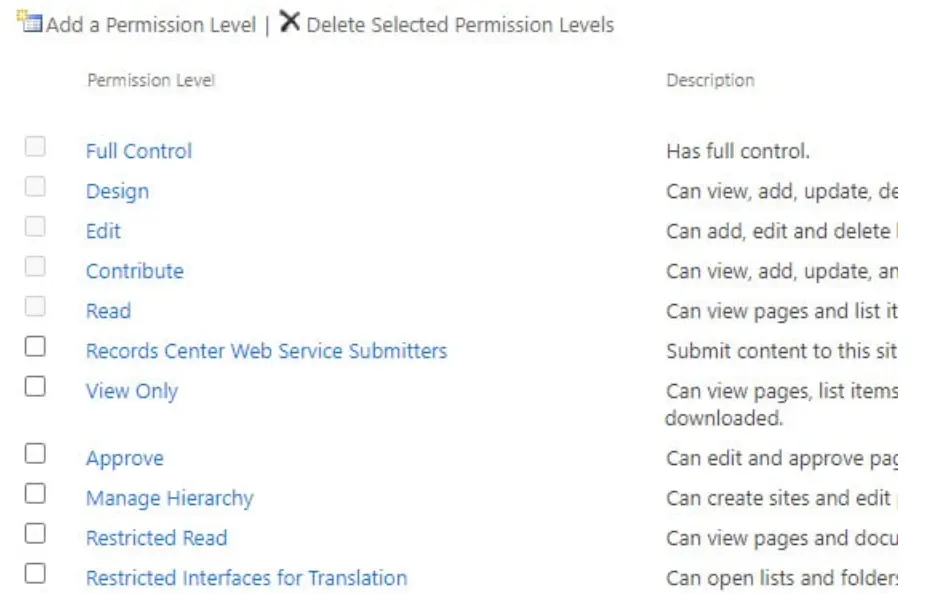
Under the Users and Permissions section, click Permission Levels. This displays all current permission levels, including any custom ones you've previously created.
3. Add a New Permission Level
Click Add a Permission Level. Give it a clear, descriptive name that reflects its intended use, for example "External Reviewer" or "Content Publisher," and add a description documenting what the level is for.
4. Select Base Permissions
Permissions are organised into three categories: List Permissions (rights related to lists and libraries), Site Permissions (rights related to the site itself), and Personal Permissions (rights related to personalised views). Select the individual permissions that match your requirements.
5. Save and Apply to Users or Groups
Click Create to save the permission level. It will now appear in your list and can be assigned to any SharePoint group or individual user.
Custom permission levels are scoped to the site collection. You'll need to recreate them on each site manually or use PowerShell scripting to automate the duplication.
How to Manage SharePoint Site Permissions
How to Check User Permissions
The Check Permissions feature lets you verify exactly what access a specific user has and why:
- Go to Site Settings and select Site Permissions
- Click Check Permissions in the ribbon
- Enter the user's name or email address and click Check Now
The tool returns the permission levels the user has along with the source, whether through direct assignment, group membership, or inherited access.
How to Change User Permission Levels
- Go to Site Settings and select Site Permissions
- Find the user or group and check the box next to their name
- Click Edit User Permissions in the ribbon
- Select the new permission level and click OK
For Microsoft 365-connected sites (Teams-connected SharePoint), the Edit User Permissions button may be greyed out. In that case, permission changes must be made at the Microsoft 365 group level directly.
How to Remove User Permissions
- Go to Site Settings and select Site Permissions
- Find the user or group and check the box next to their name
- Click Remove User Permissions
If the user is a member of a SharePoint group, removing them from the group is more efficient than removing individual permissions. Their access flows from group membership, so removing them from the group removes all related access at once.
Managing SharePoint Folder Permissions
SharePoint allows you to apply unique permissions at the folder level by breaking inheritance from the parent library. This is useful for creating confidential sub-spaces within a shared library, but creates management overhead at scale.
- Default behaviour: Folders inherit the library's permissions automatically
- Breaking inheritance: Allows unique folder-level access independent of the library
- Caution: Each folder with broken inheritance must be managed individually, which becomes increasingly difficult as folders multiply and personnel changes occur
The practical recommendation is to minimise folder-level unique permissions. If a folder genuinely needs different access from its library, consider whether it should live in a separate library provisioned with the right baseline permissions from the start.
Managing SharePoint List and Library Permissions
Just as folders can have their own permission sets, entire document libraries and lists can be configured with permissions that differ from the parent site by breaking inheritance at the library level.
To manage library-level permissions: open the document library, go to Library Settings, click Permissions for this document library, then Stop Inheriting Permissions in the ribbon and modify as required.
This is most appropriate when an entire library contains sensitive content that warrants a distinct access profile, for example a Legal Contracts library that only the legal team and senior leadership should access within a broader company intranet site.
Teams that frequently need this kind of compartmentalised access for client documents often find it more manageable in a dedicated client portal where each client group is isolated by design rather than manually separated through inheritance breaks. Clinked's client management features let you spin up a separate, fully permissioned workspace per client in minutes, with no inheritance logic to untangle.
How to Set Item Level Permissions in SharePoint
Individual item-level permissions are the most granular form of access control in SharePoint, allowing you to restrict or expand access for a single document or list item independent of the folder or library containing it.
Use cases include a single confidential document within an accessible library, a list item containing sensitive personal data, or external collaboration where a single file is shared with a client who has no broader site access.
To set item-level permissions: navigate to the file or list item, click the ellipsis, select Manage Access, click Advanced, then Stop Inheriting Permissions, and configure the unique permission set.
Be cautious with item-level permissions at scale. Each item with unique permissions must be managed individually, and overlapping or forgotten permissions can lead to accidental exposure. Libraries with a large number of uniquely permissioned items may also experience slower performance.
The core concepts (permission levels, groups, and inheritance) are the same in both environments. The primary differences are in group management and the tools available for external sharing and compliance monitoring.
Best Practices for SharePoint Permissions Management
- Use groups over individuals: Always assign permissions to SharePoint groups rather than individual users. When you change the permission level of a group, everyone in that group is updated automatically.
- Follow the principle of least privilege: Give users only the access they need. Avoid defaulting to Edit when Contribute will do; avoid Full Control when Edit is sufficient.
- Audit permissions regularly: Schedule periodic reviews, quarterly at minimum, to remove access for users who have left or changed roles, and to identify permission sprawl.
- Document your decisions: Maintain a log of what access was granted, to whom, why, and when. This is essential during compliance audits and when onboarding new administrators.
- Limit broken inheritance: Structure your sites so that content with different permission needs lives in different sites or libraries rather than relying on unique folder and file permissions.
- Enable audit logging: In SharePoint Online, enable the Unified Audit Log in Microsoft Purview to track file access, sharing events, permission changes, and deletions.
Common SharePoint Permission Mistakes to Avoid
- Assigning to individuals instead of groups: Creates permission sprawl where no one can quickly tell who has access to what or why.
- Over-permissioning: Granting Full Control when Contribute would suffice increases security risk and means users can accidentally break things they shouldn't be touching.
- Excessive broken inheritance: Breaking inheritance at too many levels creates a maintenance nightmare. New administrators inheriting the environment will struggle to understand what was intended.
- Ignoring Limited Access entries: Understanding why Limited Access appears and cleaning it up when no longer needed is part of good permissions hygiene.
- Not auditing external sharing: SharePoint Online's sharing settings can result in anonymous links and guest user access that persists long after a project ends.
- Forgetting to revoke access: Terminated employees or former contractors retaining SharePoint access is a significant insider threat risk that regular access reviews exist to catch.
Simplify Access Management with Clinked
SharePoint's permission system is powerful, but as this guide has shown, that power comes at a real cost in administrative time and complexity. And that's before you factor in licensing fees, storage overages, and implementation overhead, all of which we break down in detail in our guide to SharePoint costs. Permission complexity also feeds directly into the recurring access failures and broken sharing links that many teams experience on a daily basis, which we cover in depth in our piece on SharePoint issues. For teams that primarily need to collaborate with clients, the inheritance model, manual audit trails, and complexity of managing broken inheritance across hundreds of libraries can feel like enterprise scaffolding built for a far larger operation than what's actually needed.
Clinked is purpose-built for structured, secure client collaboration without the overhead. Here's where it differs:
Simpler role structure. Clinked uses four member types (Account Administrator, Group Administrator, Group Contributor, and Group Member) with clearly defined scopes of access that can be configured in minutes. There's no need to understand permission inheritance chains or diagnose why a user has Limited Access from a forgotten folder permission.
Granular file and folder control without the chaos. Clinked's access and permissions features let you apply view, download, and edit permissions at the portal, folder, or file level in a way that's intuitive from the ground up. One G2 reviewer noted: "The permissions are easy to manage, so we can keep internal work private while still keeping clients."
Audit trails built in. Clinked's data protection and compliance features include detailed audit trails tracking user activity and document actions, plus a real-time activity stream covering uploads, comments, tasks, and more. In SharePoint, equivalent visibility typically requires a separate Microsoft Purview configuration.
Bank-grade security without the complexity. Clinked uses AES-256 encryption and is ISO 27001 certified, SOC 2 compliant, GDPR covered, and HIPAA-ready. These certifications matter for regulated industries like accounting, legal, financial services, insurance, and healthcare.
White-label branding. Unlike SharePoint, which looks unmistakably like a Microsoft product, Clinked's custom portal goes deep on branding: custom domains, branded email notifications, and white-label mobile apps for iOS and Android. When clients log in, they see your brand.
Secure external collaboration by design. SharePoint's external sharing options are one of its most commonly misconfigured features. Clinked's file sharing is built specifically for secure external collaboration. You control who sees what, and the platform is designed around that use case rather than bolting it on.
Clinked also supports client onboarding, project management, content management, and no-code portal building, making it a complete alternative for professional services teams that have outgrown SharePoint's complexity for client-facing work.
If you're finding SharePoint's permission model more of a burden than a benefit, book a demo with Clinked to see how access management works in a platform built for client collaboration from the ground up.
FAQs About SharePoint Permission Levels
Is SharePoint being discontinued in 2026?
No, Microsoft has not announced plans to discontinue SharePoint. SharePoint continues to receive updates and remains a core part of Microsoft 365, with ongoing investment in its integration with Microsoft Teams and Microsoft Copilot.
What are the three default permission groups in SharePoint?
The three default SharePoint groups are Owners (Full Control), Members (Edit), and Visitors (Read). These cover the majority of common access scenarios and are automatically created when a new SharePoint site is provisioned.
How do I check what permission level a user has in SharePoint?
Use the Check Permissions feature in Site Settings under Site Permissions. Enter the user's name or email, and SharePoint will return the permission levels they have and the source of each, whether from direct assignment, group membership, or inheritance.
Can I copy permission levels between SharePoint sites?
Custom permission levels cannot be directly copied between sites through the SharePoint interface. You'll need to recreate them manually on each site collection, or use PowerShell (specifically the PnP PowerShell module) to script the duplication across multiple sites.
What happens to permissions when files are moved between SharePoint libraries?
When files are moved to a different library, they generally inherit the permissions of the destination library. Files that had unique permissions applied at the item level may retain those unique permissions depending on how the move is performed. Always verify permissions after major content moves, particularly for sensitive documents.
Explore how Clinked's client portal gives you enterprise-grade security with an intuitive permission model your team and clients will actually want to use. See all features, explore pricing, or book a demo today.







.webp)