

If your business already uses Microsoft 365, building a SharePoint client portal often feels like the obvious next step. It allows you to share documents with clients, manage access using SharePoint permissions, and collaborate within tools your team already knows.
But while SharePoint works well at first, many teams quickly run into challenges as they scale from complex permission structures to limited visibility into SharePoint external sharing.In this guide, you’ll learn:
- How to set up a SharePoint client portal step by step
- The most common limitations and permission issues
- How SharePoint compares to purpose-built client portal software
- When it makes sense to consider alternatives like Clinked
See also: SharePoint vs Clinked
In the early stages, a SharePoint client portal works well enough. Files get uploaded, clients get access, and documents get shared. For a limited number of clients with straightforward needs, the setup feels efficient and cost-effective. But "good enough for now" has a way of quietly becoming "harder than it needs to be" as the business grows.
More clients means more folders, more permission groups, and more configuration to maintain. SharePoint client collaboration becomes increasingly fragmented as communication spreads across SharePoint, Teams, Outlook, and whatever other tools different team members prefer. What once felt manageable begins to feel like a system that requires constant upkeep just to stay functional.
This is the moment where teams stop asking "can SharePoint work as a client portal?" and start asking "is this actually the best way to manage client collaboration at the scale we are operating at today?" This guide walks through what a SharePoint client portal is, how to set one up correctly, where the real friction emerges, and how to decide whether SharePoint is the right long-term foundation or whether a purpose-built alternative would serve your business better.
What Is a SharePoint Client Portal?
A SharePoint client portal is a secure digital workspace within Microsoft 365 that gives external users, clients, partners, vendors, or consultants controlled access to documents and collaboration features without requiring them to be full members of your organization.
Rather than exchanging files over email or relying on shared drives with inconsistent access rules, a client portal creates a centralized environment where both your team and your clients can find what they need in one place. In a typical setup, this means document libraries for file storage and version control , SharePoint permissions that define what each external user can see, and lightweight collaboration features such as comments, shared task lists, and co-authoring.
External users are invited through SharePoint external sharing via Microsoft 365 guest access, which lets them log in with their own credentials and view only the content they have been explicitly granted permission to see.
There is one important caveat worth understanding from the outset: SharePoint was originally designed for internal collaboration, not for teams working with external clients. External sharing capabilities were added over time, but the platform's architecture, navigation patterns, and administrative model all reflect its internal origins. That distinction is easy to overlook when setting up your first client workspace, but it becomes harder to ignore as your client base grows.For teams that start to feel this gap, it is common to introduce a platform designed specifically for external collaboration alongside SharePoint rather than replacing it entirely. Solutions like Clinked are often used in parallel allowing organizations to continue using SharePoint for internal workflows while providing clients with a more structured, intuitive environment for communication, document sharing, and project visibility. In some cases, teams adopt it as a standalone client portal, particularly when external collaboration becomes a central part of their operations and requires a simpler, more controlled experience.
Why Organizations Choose SharePoint for Client Portals ?
The decision to build a SharePoint client portal is rarely impulsive. It typically follows a logical chain of reasoning that makes genuine sense given the constraints most organizations operate under.
The most straightforward reason is availability. For any organization on a Microsoft 365 subscription and the majority of mid-sized businesses,SharePoint is already included at no additional cost. There is no new vendor to evaluate, no procurement process to navigate, and no additional budget to justify.
Familiarity reinforces the decision. Your internal team likely already works within the Microsoft ecosystem through Teams, OneDrive, or Outlook. That baseline familiarity reduces the internal learning curve considerably, which matters when rolling out a new process without disrupting existing workflows.
Integration is another genuine advantage. Documents can be surfaced through Teams channels, edited in Office Online, and linked directly from Outlook. For organizations deeply invested in the Microsoft ecosystem, this level of native connectivity is difficult to replicate with third-party tools.Security and compliance credentials also carry weight. Microsoft holds enterprise-grade certifications including ISO 27001 and SOC 2, and SharePoint permissions architecture meets the requirements of regulated industries. For legal, financial, or healthcare organizations handling sensitive client data, operating within a Microsoft-certified environment is a meaningful consideration.
That said, this level of integration is not exclusive to SharePoint. Platforms like Clinked also support both native integrations and connectivity through tools like Zapier, allowing teams to connect their existing workflows without being locked into a single ecosystem. This means organizations can continue using tools like Microsoft 365 internally while providing clients with a more streamlined, purpose-built Team-collaboration experience externally.
Similarly, while Microsoft’s security credentials are well established, Clinked is built with security as a core foundation — offering bank-grade encryption, compliance with standards such as ISO 27001 and SOC 2, and flexible hosting options. For organizations that require both strong security and a more intuitive client-facing experience, this creates a viable alternative without compromising on compliance.
The challenge is that client collaboration rarely remains simple over time, and SharePoint's strengths in an internal context have a tendency to quietly become friction points in an external one.
How to Build a SharePoint Client Portal
A well-structured SharePoint client portal setup involves the following steps. Each one adds a layer of configuration that compounds as your client base grows.
1.Define your use case
Clarify whether the portal is primarily for document delivery, two-way collaboration, approvals, or client onboarding. Teams that skip this step often end up with a portal that works for some tasks and requires workarounds for others.
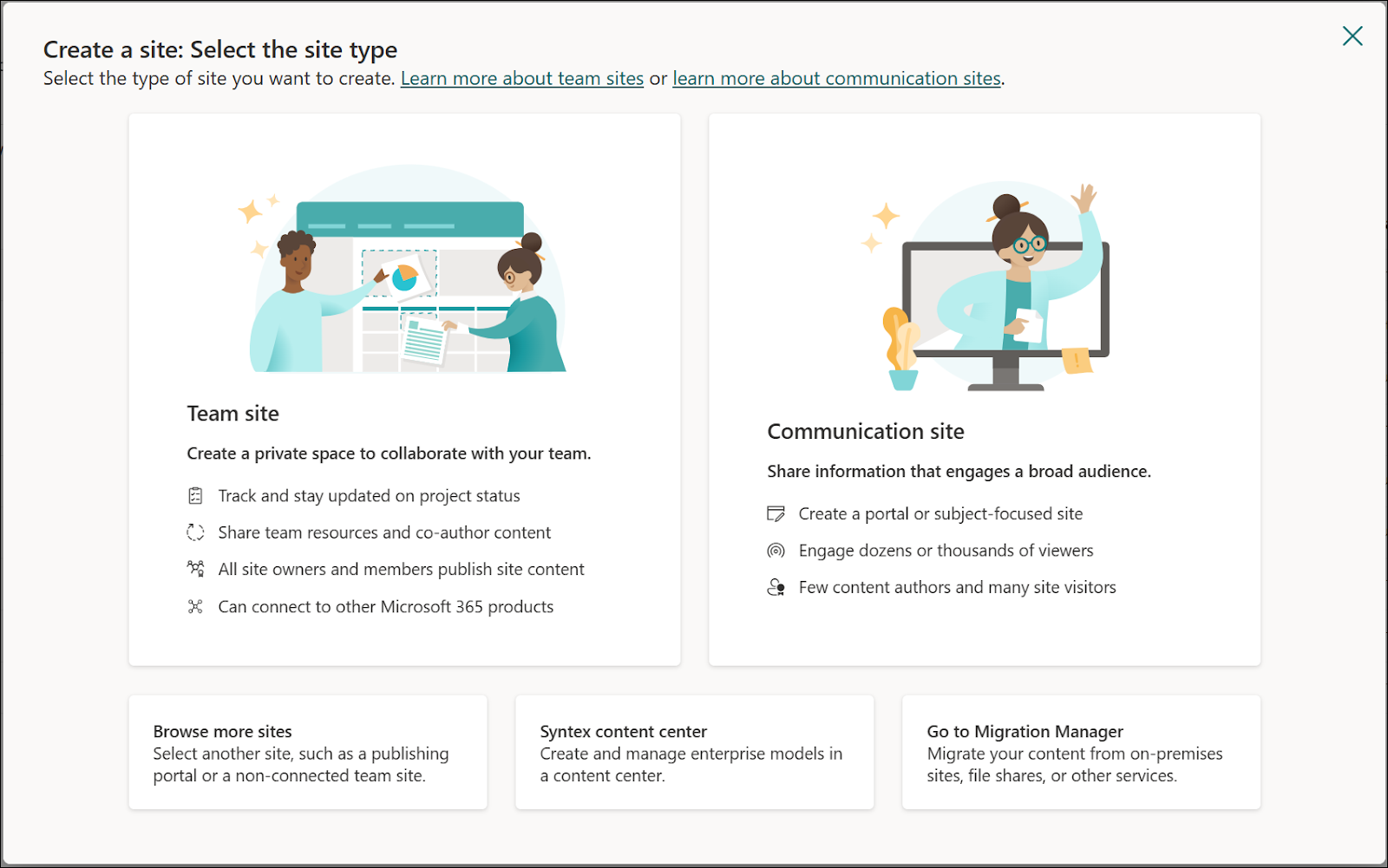
2.Create the appropriate site type
Use a Team Site for collaboration-focused portals. Communication Sites are better suited to internal broadcasting and are not well-suited to client-facing workflows.
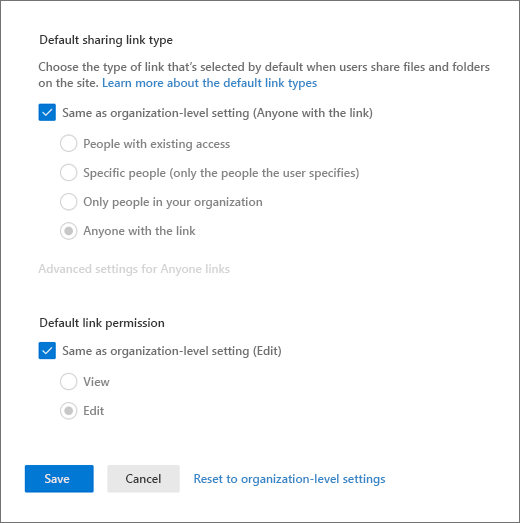
3.Configure SharePoint external sharing
Enable external sharing at both the tenant level and the individual site level. If these settings are misaligned, clients will encounter access errors that are frustrating to diagnose and slow to resolve
4.Structure your SharePoint permissions
Create Microsoft 365 security groups for each client and assign appropriate permission levels — "Contribute" for clients who need to upload files, "Read" for those who only need to view them. This works at small scale but becomes progressively harder to manage as clients are added.
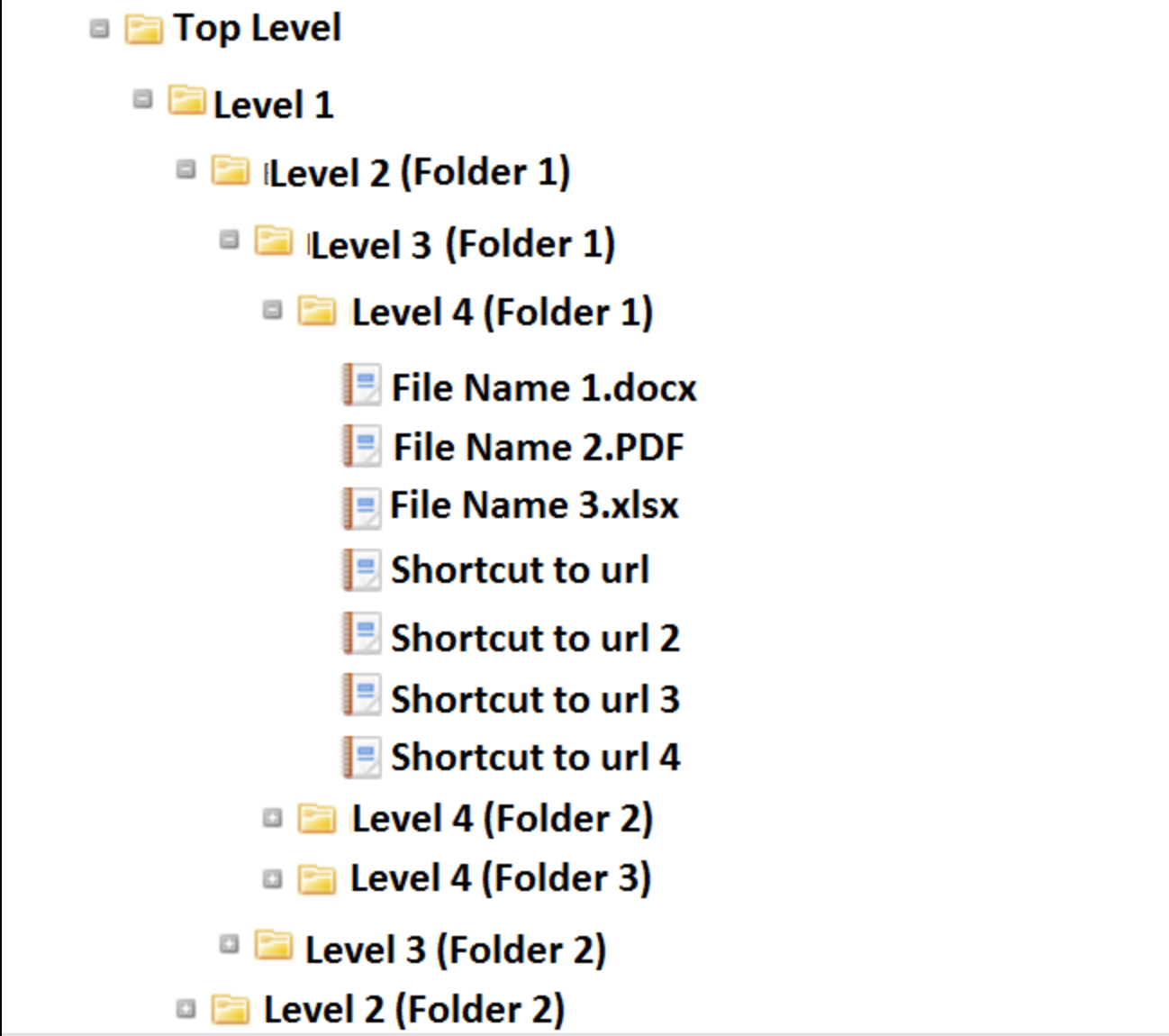
5.Build your document libraries
Set up folder structures, enable version history, and apply metadata where relevant. Without active governance, naming conventions drift and folder hierarchies quickly become difficult to navigate.
6.Customize the client experience
Add your logo, adjust color themes, and configure navigation. Be aware that the underlying interface will still reflect SharePoint's internal design patterns, which can feel unfamiliar to external users.
7.Invite clients and manage ongoing access
Send guest invitations and establish a process for adding, adjusting, and removing access over time. Across twenty or more active clients, this ongoing maintenance becomes one of the most time-consuming aspects of running a SharePoint client portal.
Limitations of a SharePoint Client Portal
Understanding SharePoint client portal limitations is essential before committing to this approach at scale. The friction does not usually appear all at once; it accumulates gradually until the system becomes harder to manage than it is to use.
Scaling across multiple clients is where most teams first feel the strain. Every new client requires a new site or subsite, a new permission group, a new folder structure, and a new set of external users to onboard and maintain. There is no standardized process that transfers cleanly from one client to the next without manual reconfiguration. In some cases, organizations report environments with tens of thousands of items carrying unique permissions, making governance and troubleshooting increasingly difficult over time.
Client experience and adoption present another significant challenge. External users encountering SharePoint for the first time often find the interface counterintuitive. This usability challenge is not unique.This reflects a broader issue with complex systems.According to McKinsey & Company, employees spend an average of 1.8 hours per day searching for information due to fragmented and poorly structured content.Navigation is unclear, finding a document requires knowing the folder structure in advance, and basic tasks are not immediately obvious to someone who does not work inside Microsoft 365 daily. When clients find a portal difficult to use, they stop using it, reverting to email and phone calls, which defeats the purpose of building a portal in the first place.
Fragmented collaboration compounds the problem further. SharePoint rarely operates in isolation. Most teams also use Teams for messaging, Outlook for formal communication, and a separate tool for task tracking. Clients may only have access to some of these tools, which means the collaboration workflow is split across channels with no single environment where everything lives cleanly.
Common SharePoint Permission Problems
SharePoint permissions are one of the most frequently cited pain points among teams managing client portals, and for good reason. Many of these challenges are well documented in common SharePoint issues, particularly around complex access control and permission management at scale.The permission model is flexible, but that flexibility introduces complexity that is difficult to manage at scale.This is where many teams begin
looking for simpler alternatives like Clinked’s client portal software.
The standard approach creating security groups per client and assigning access levels works reasonably well at the start. As client numbers grow, it quickly becomes "groups on top of groups," with overlapping memberships and layered overrides that interact in ways that are hard to predict and harder to unwind.
Broken inheritance is a particularly common issue. SharePoint uses permission inheritance to cascade access rules from parent folders to subfolders. In practice, this inheritance breaks regularly often through routine actions like moving or copying files — creating inconsistencies that are difficult to detect without running manual audits or scripts. Many administrators describe the result as a permission structure that looks logical on the surface but is unreliable underneath.
There is no straightforward way to get a clear overview of who has access to what. Without dedicated admin tooling or scripted reports, confirming that permissions are correctly configured requires significant manual effort. Teams managing large numbers of client workspaces often perform periodic permission audits simply to maintain basic security hygiene work that adds no value to client relationships but cannot safely be skipped.
External Sharing Challenges in SharePoint
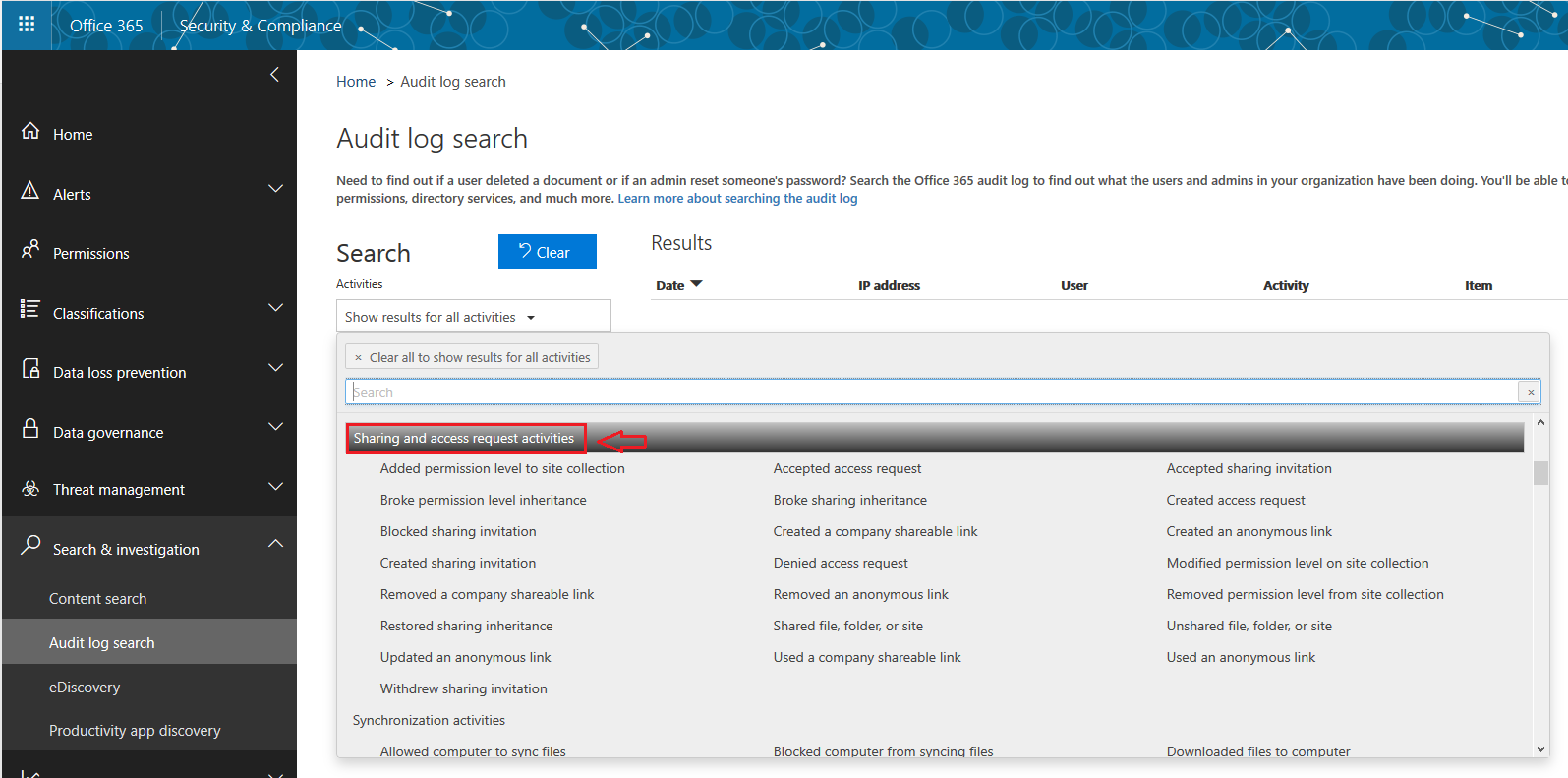
SharePoint external sharing introduces its own layer of operational complexity that often catches teams off guard as their client base scales.Platforms like Clinked provide a centralized view of client access without requiring audit logs or admin tools.
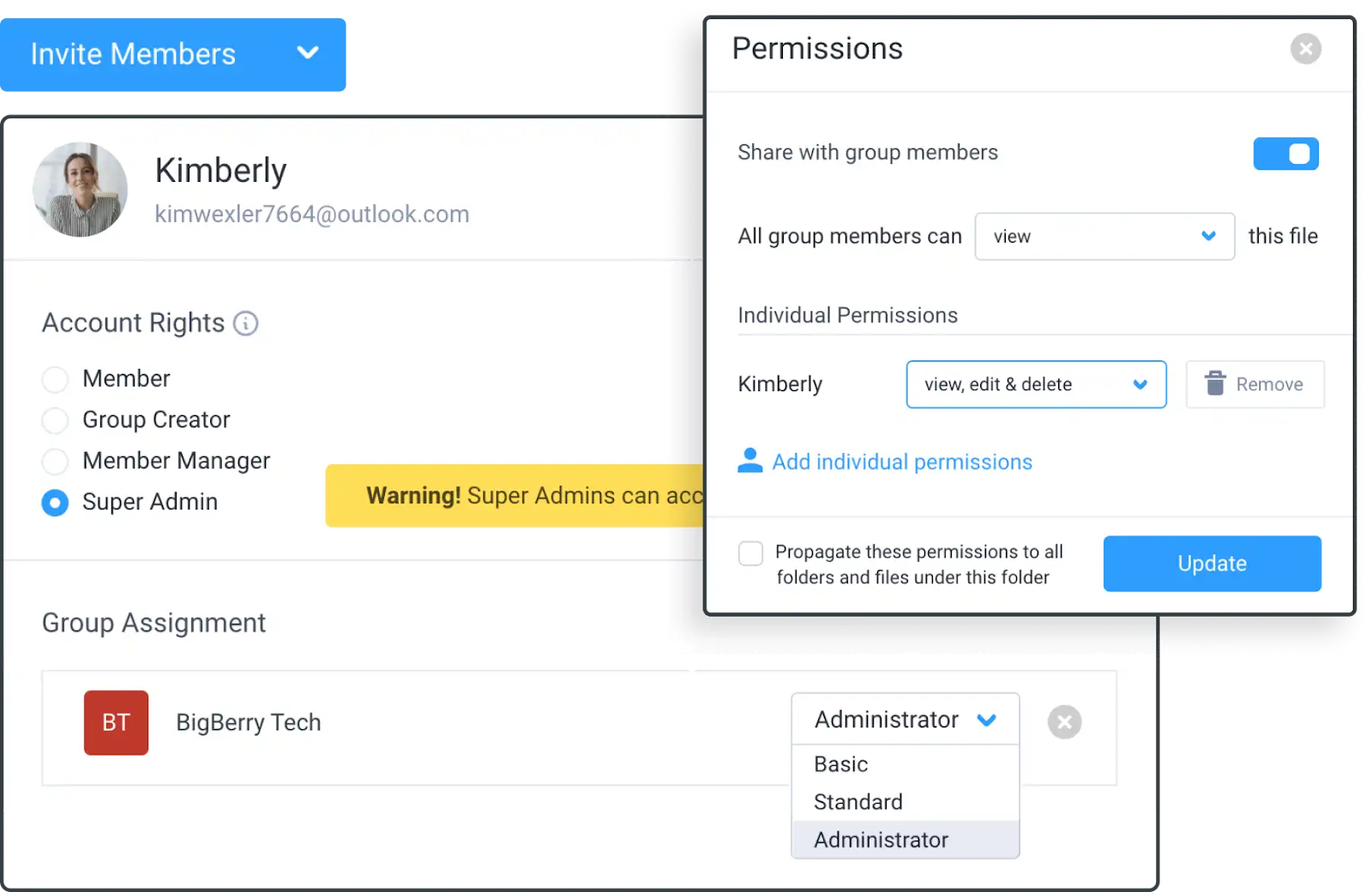
Enabling external sharing requires configuration at two distinct levels: the Microsoft 365 tenant and the individual site. If these settings are not aligned — which happens more often than you would expect, particularly in organizations with restrictive IT policies — clients encounter access errors that are slow to diagnose and require IT involvement to resolve.
Perhaps the most significant challenge is the lack of visibility into what is actually being shared externally. Files can be shared across SharePoint, OneDrive, and Teams simultaneously, and there is no single, unified view that shows all external access in one place. Teams are left relying on manual audits, admin console reports, or scripts to answer a question that should have a simple answer: which files do our clients currently have access to?For teams struggling with this lack of visibility, platforms like Clinked offer a more controlled client portal environment where external access is clearly managed and easy to audit. If you want to see how this works in practice, you can book a quick live demo. <CTA>
This absence of a "single pane of glass" for external sharing creates real operational and security risk. As the number of clients and shared files grows, the gap between what teams think has been shared and what has actually been shared widens. Confidential documents shared to the wrong workspace, guest access that was never revoked after an engagement ended, and files accessible across client boundaries are all real scenarios that emerge from this lack of visibility — and all of them are difficult to catch without dedicated governance processes.
SharePoint vs Client Portal Software
When organizations begin to feel the weight of these challenges, many start evaluating purpose-built alternatives. The SharePoint vs client portal comparison reveals a fundamental difference in design intent, not just features.
The core distinction is not that SharePoint is a poor platform — it is genuinely powerful within the scope it was designed for. The problem is that the same flexibility making it strong for internal enterprise use is what creates complexity in client-facing workflows. When your primary audience is external users who interact with the platform infrequently and need it to be immediately navigable, a tool optimized for internal power users works against you.
How Clinked Solves These Challenges
As the friction of managing a SharePoint client portal at scale becomes more visible, many teams begin exploring platforms built specifically for SharePoint client collaboration. Clinked is designed from the ground up for client-facing workflows, and the differences are concrete.
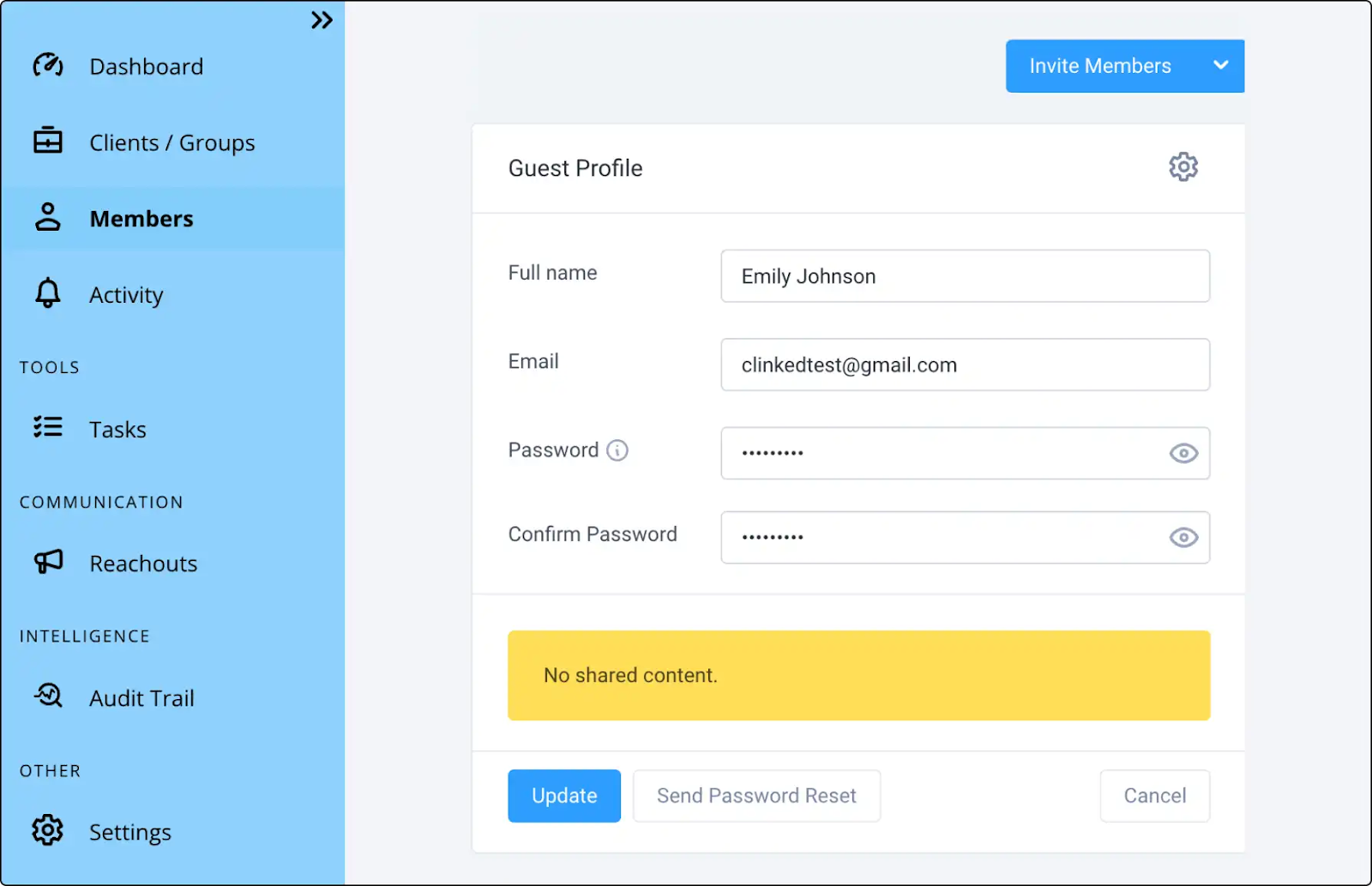
Faster, simpler setup. Because Clinked is purpose-built for client portals, the structure you need already exists. Workspaces, file organization, communication channels, and permission management are built in rather than built out. Teams consistently describe SharePoint client portal setup as building a system, and Clinked as configuring one.
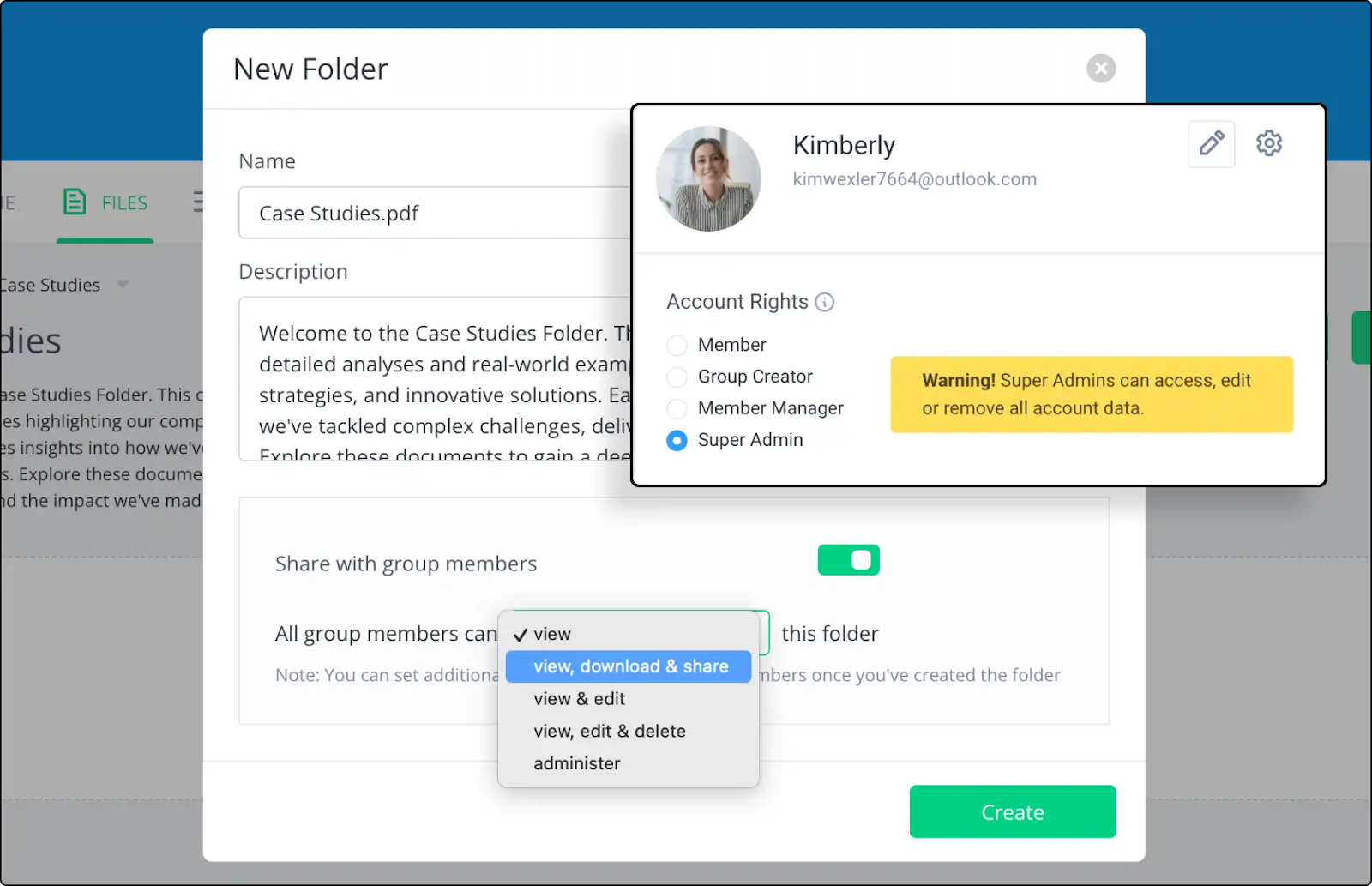
Permissions that do not require a specialist. In Clinked, permissions are structured at the workspace level and apply logically throughout. Adding a client, adjusting access, or removing a user does not require navigating nested settings menus or running audit scripts. Unlike SharePoint, where visibility into permissions often requires dedicated tooling, Clinked makes access clear and predictable teams know exactly who can see what, at a glance.
A client experience that drives adoption. Clinked is built for external users who may not use the platform daily and should not need a guided walkthrough to find a file. The interface is clean, purposeful, and immediately navigable. In practice, this translates directly to higher portal engagement and fewer clients reverting to email — which is the clearest indicator that a portal is actually doing its job.
Unified collaboration without tool sprawl. Rather than splitting client work across SharePoint for files, Teams for messaging, and Outlook for updates, Clinked brings document sharing, messaging, task management, and project visibility into a single environment. Clients have one place to go. Your team manages one system. There is no ambiguity about where decisions live or which channel to use for what. Teams can track changes, manage versions, and collaborate on documents without switching between tools or losing visibility.
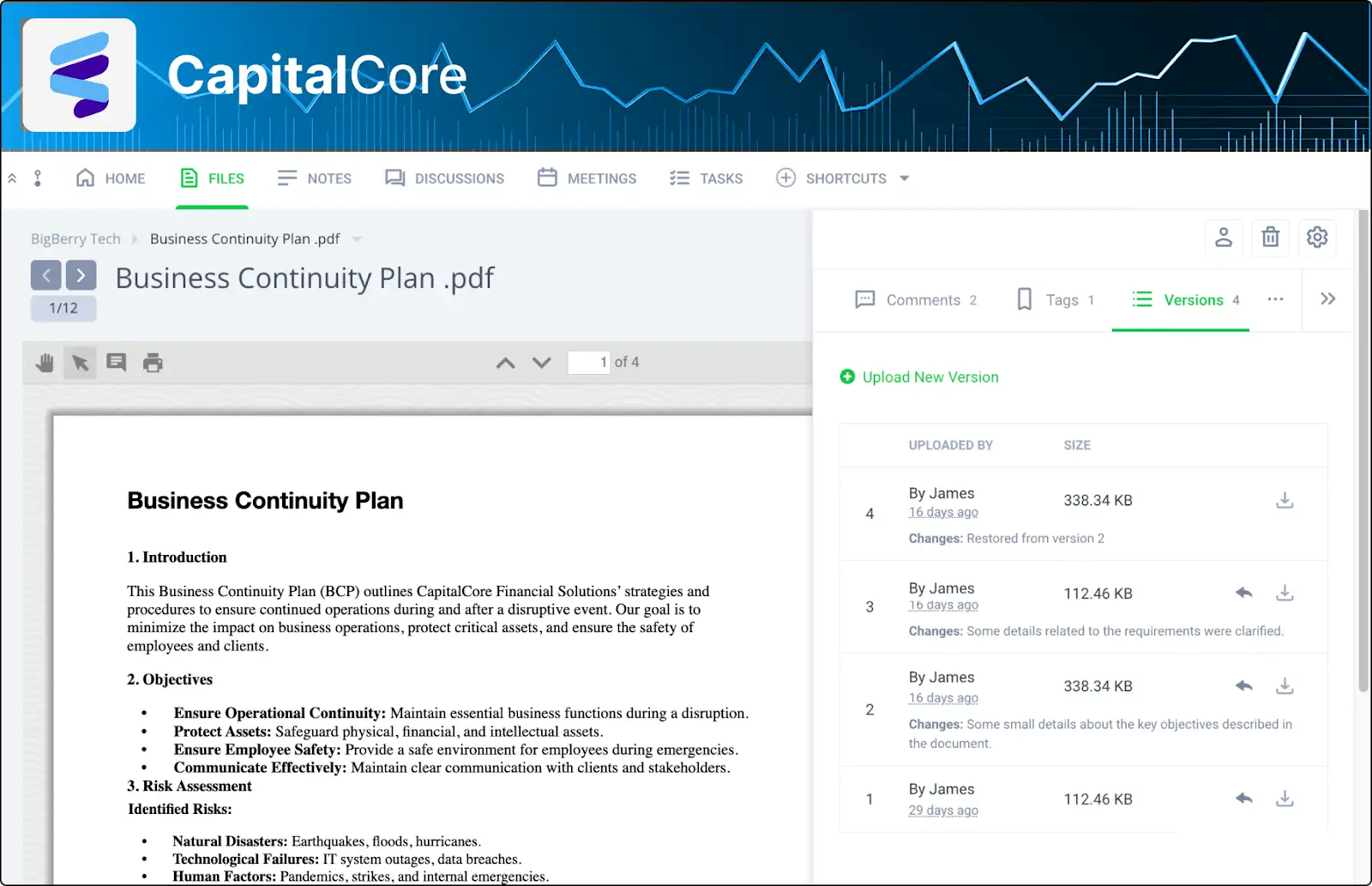
Consistent scalability. In SharePoint, each new client adds incremental complexity. In Clinked, adding a new client workspace is a repeatable process regardless of how many clients you already serve.which means your operational capacity is not quietly consumed by the logistics of managing the system that is supposed to support your client work.
FAQ: SharePoint Client Portal
What is a SharePoint client portal?
A SharePoint client portal is a secure workspace within Microsoft 365 that gives external users such as clients or partners access to documents and collaboration features via SharePoint external sharing and guest access. It allows organizations to share files and communicate with clients without granting them full access to internal systems.
How do you build a SharePoint client portal?
SharePoint client portal setup involves seven key steps: defining your use case, creating a Team Site, configuring SharePoint external sharing at both the tenant and site level, structuring SharePoint permissions by client, building document libraries, customizing the interface, and managing ongoing access. Each step adds configuration complexity that grows with your client count.
What are the limitations of a SharePoint client portal?
Common SharePoint client portal limitations include SharePoint permissions complexity, broken inheritance, lack of visibility into SharePoint external sharing, fragmented SharePoint client collaboration across multiple tools, low client adoption due to an interface designed for internal users, and significant ongoing maintenance overhead as client numbers scale.
Is SharePoint good for client collaboration?
SharePoint can support SharePoint client collaboration effectively for small numbers of clients with straightforward document-sharing needs. However, as workflows grow more complex, SharePoint client portal limitations around permissions, external visibility, and client experience make it increasingly difficult to manage efficiently without dedicated IT support.
What is the difference between SharePoint and a client portal?
The SharePoint vs client portal distinction comes down to design intent. SharePoint was built for internal enterprise collaboration. Purpose-built client portals like Clinked are designed from the ground up for external-facing workflows — prioritizing ease of use for clients, simplified SharePoint permissions-style access control, clear external sharing visibility, and scalability without added administrative complexity.
Final Thoughts
SharePoint is a capable and well-supported platform. For organizations with simple needs, existing Microsoft 365 investments, and IT resources available for ongoing configuration, it can serve as an adequate starting point for a client portal.
But as client relationships multiply and the operational cost of managing permissions, maintaining structure, and driving client adoption starts to outweigh the efficiency gains the portal was supposed to deliver, the case for a purpose-built alternative becomes difficult to ignore.
Clinked was built for client collaboration from the beginning — which shapes everything from setup to client experience to how it performs as your business scales.
For teams spending more time managing their portal than using it, it is worth seeing what a platform designed specifically for this purpose looks like in practice. Most find the difference becomes clear within the first demonstration.
Clinked is a secure, white-label client portal platform that brings documents, communication, and workflows into one place — purpose-built for professional services teams managing client collaboration at scale.







.webp)
.webp)